Track budgets and capacities
In about 15 minutes you record a client’s hour allowance, enter the capacity per sprint and record cuts — so automatic sprint planning stays inside the agreed hours.
What you will have at the end
- A budget for a client with From, To and Hours
- A capacity value for that client in the current sprint
- Optionally a cut under Budget Tasks
Before you start
- A premium project on Sprints (automatic) Premium , see Plan sprints automatically
- The client already exists, see Invite your first client
Steps
-
Open Budgeting
Click Time Planning → Budgeting. The page lists one-time and recurring budgets per client. Next to the agreed Hours you see Used and Available.
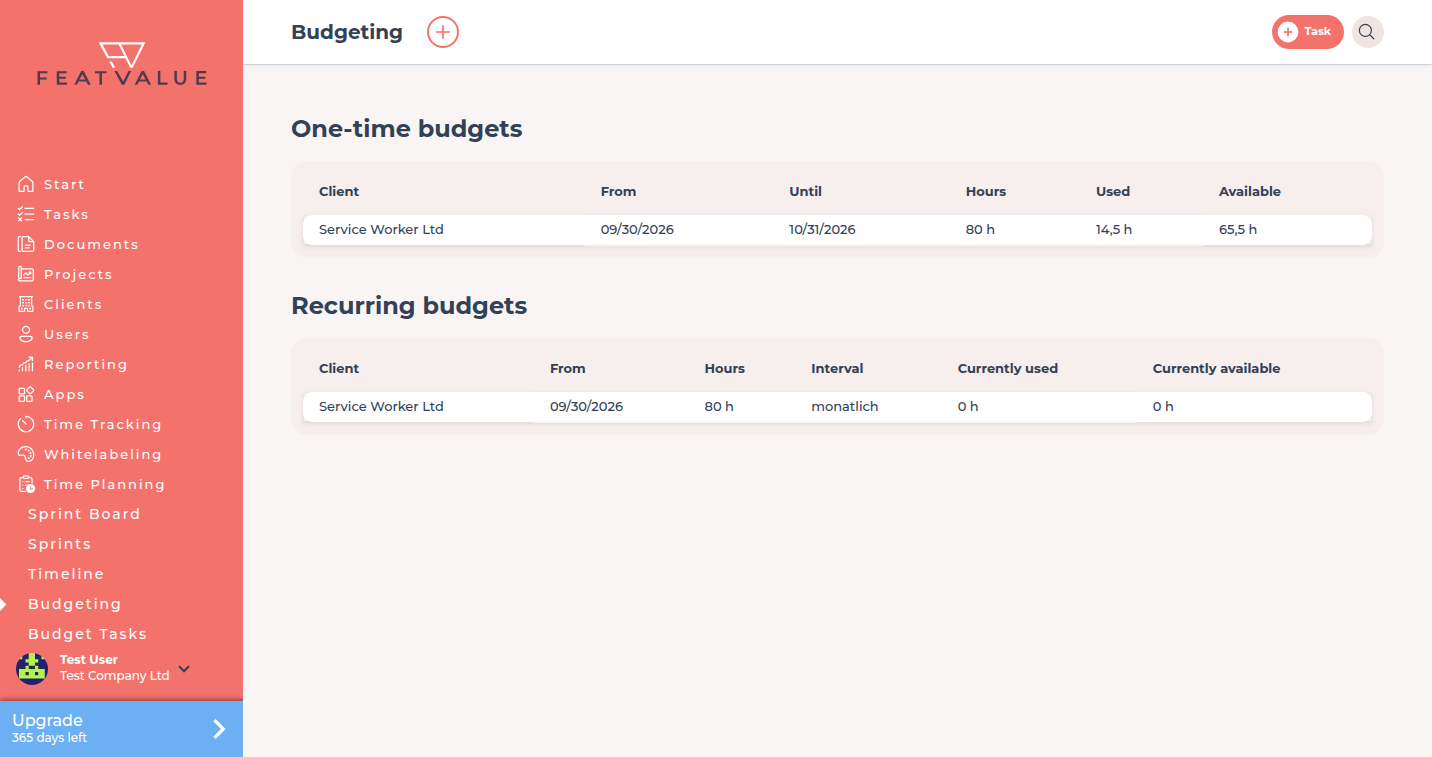
Budgeting: agreed, used and available hours per client. -
Assign a budget
Click the plus Assign budget at the top. Pick the Client, enter the agreed Hours and set the period with From and To. Choose One-time budget or Recurring budgets. A recurring budget renews according to Repeat every and Repeating, for example every month. Click Assign budget. Details: Budgeting.
-
Enter capacity per sprint
On the sprint board, click the cog Adjust capacities. FeatValue asks What is your capacity for this customer in this sprint? Enter the hours and click Save. Enter holidays or time off directly on the affected sprint. Details: Capacity planning.
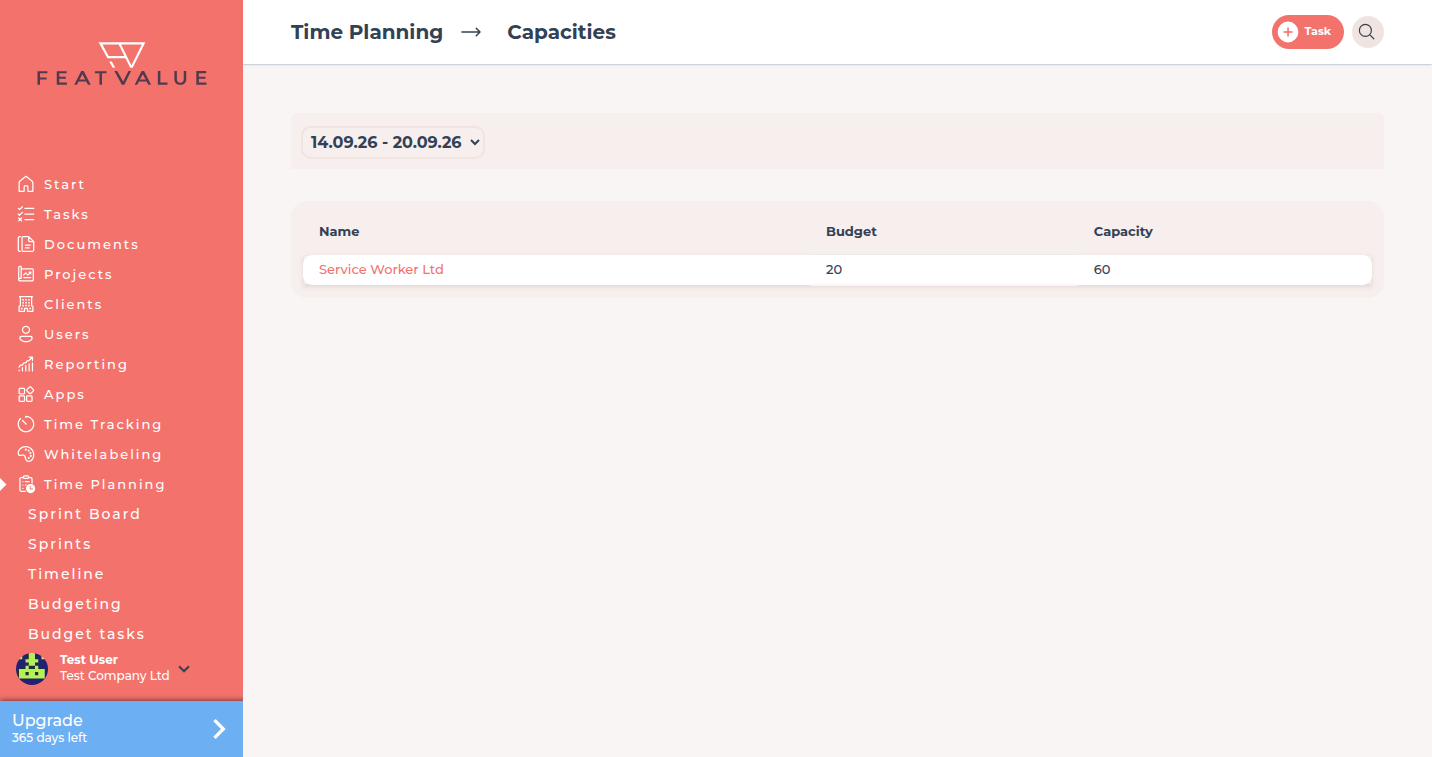
Capacities: budget and available hours per client in the selected sprint. -
Record a cut
If a task took longer than you want to charge, go to Time Planning → Budget Tasks and open the task. Under Cuts click the plus Create cut, enter Duration (in h) and a Reason, then click Save. Details: Estimates and budget cuts.
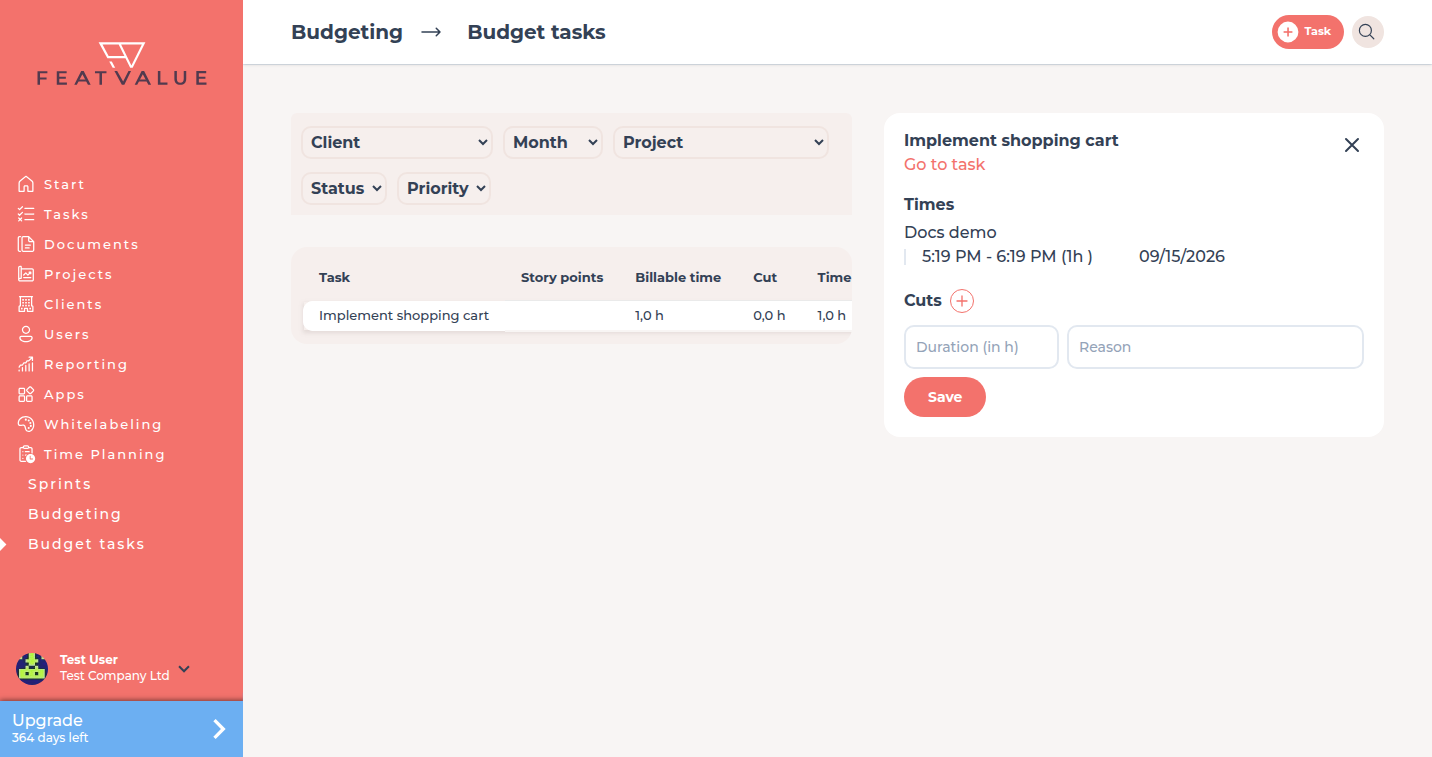
Record cuts with duration and reason under Budget Tasks.
Check your result
Time Planning → Budgeting shows the client’s allowance with Used and Available. Capacities shows your value for the sprint. A cut stays documented on the task but does not count against the client’s budget.
Next steps
- Import time entries so the used hours are right
- Build a reporting dashboard for budget widgets
- Capacity planning for the difference between capacity and budget
Your question has not been answered?
We will be happy to help you. You can send us an e-mail or arrange a video conference: