
FeatValue MOCO

MOCO client portal for agencies MOCO for your team, FeatValue for your clients

Your clients see what happens in MOCO inside the FeatValue portal: projects, budget, remaining hours and logged time. Questions and approvals run through the portal instead of email and land in MOCO as project notes. Your team keeps planning, tracking and invoicing in MOCO.

Start free. No credit card. Set up in minutes.

FeatValue: Your client portal – connected to MOCO

MOCO: your team plans, tracks time and invoices. Your clients see budget, time and approvals in FeatValue.
MOCO – FeatValue
Budget and remaining hours without asking – MOCO

Budget

Budget and remaining hours without asking

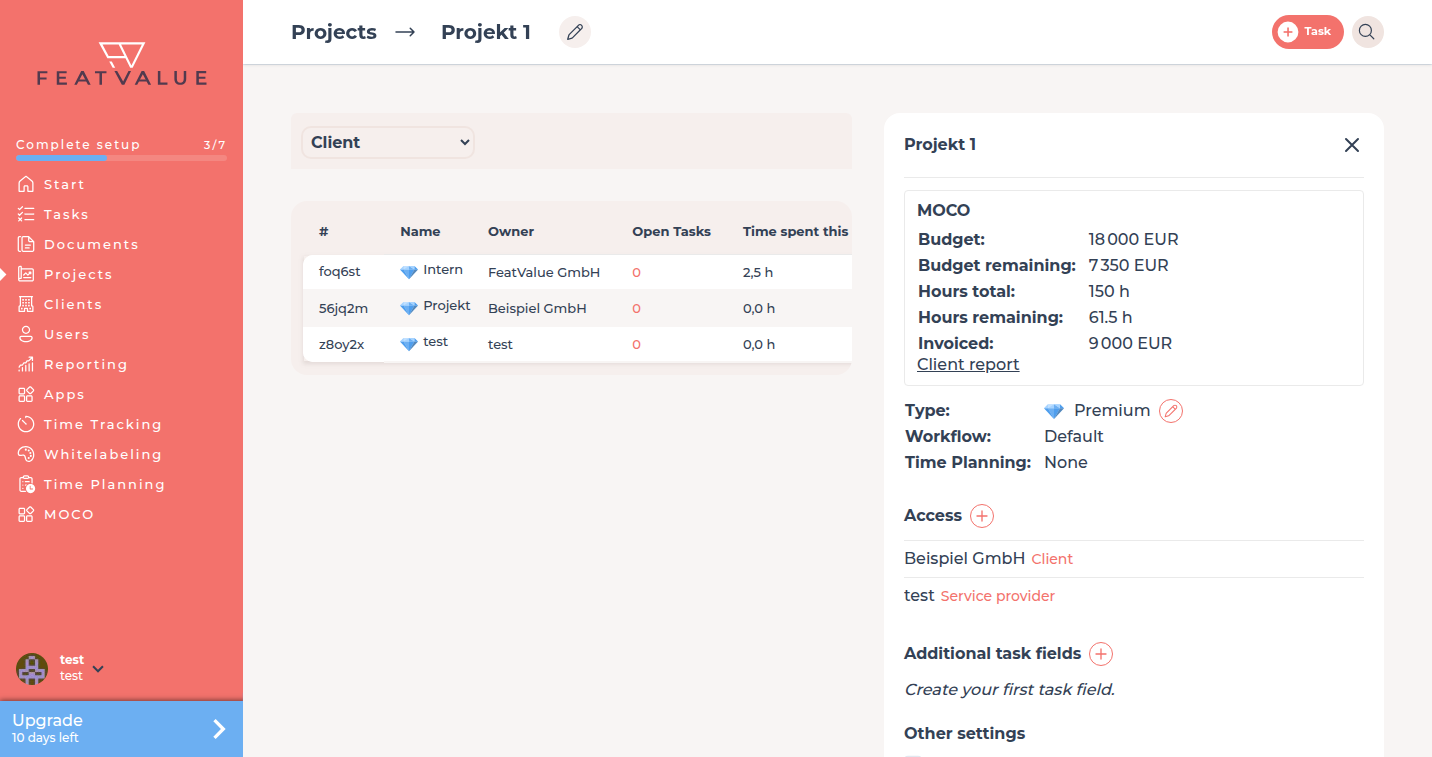
In the project details your clients see a MOCO box with budget, remaining budget, hours and the invoiced amount, optionally with a link to the customer report. The figures come straight from MOCO and stay current, so nobody has to ask for the status by email.

Clients

Clients and contacts from MOCO

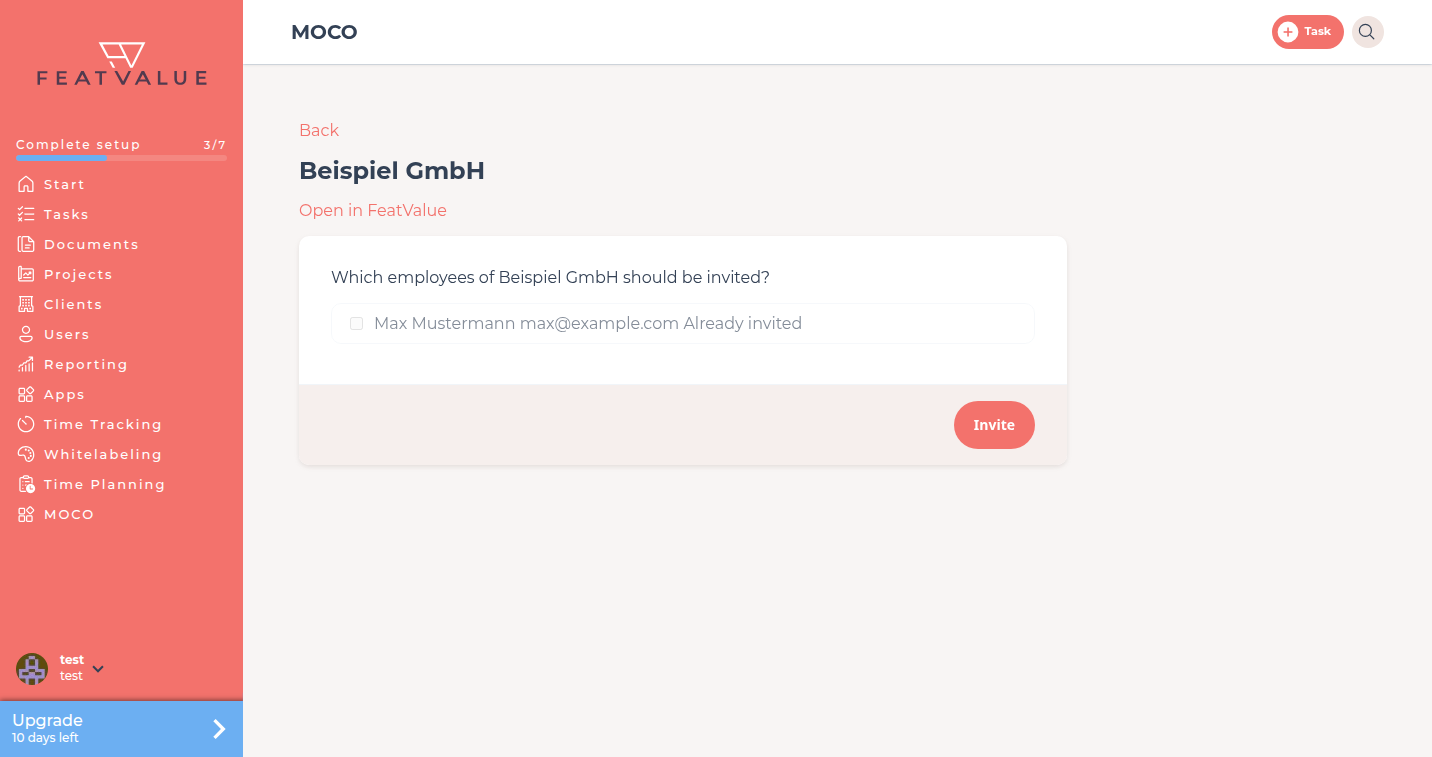
FeatValue imports companies and contacts from MOCO, and won deals can become clients right away. For each company you choose which contacts to invite to the portal. You keep maintaining client data in MOCO only.

Clients and contacts from MOCO – MOCO
What happens in the portal lands in MOCO – MOCO

In sync

What happens in the portal lands in MOCO

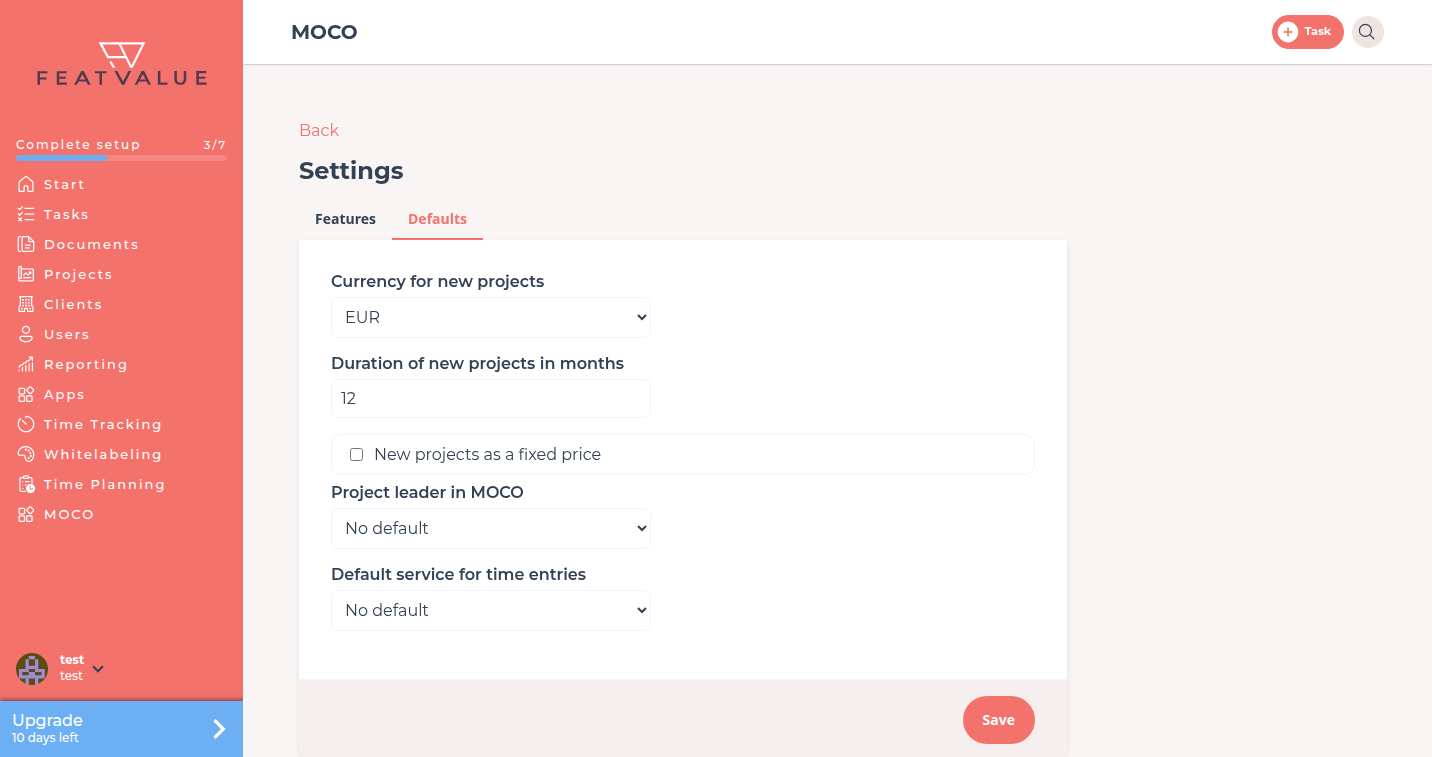
New FeatValue projects are created in MOCO with your currency, duration and project leader. Time logged in FeatValue goes to MOCO with the default service, and comments and approvals appear as project notes. Each direction can be switched off on its own.

Setup

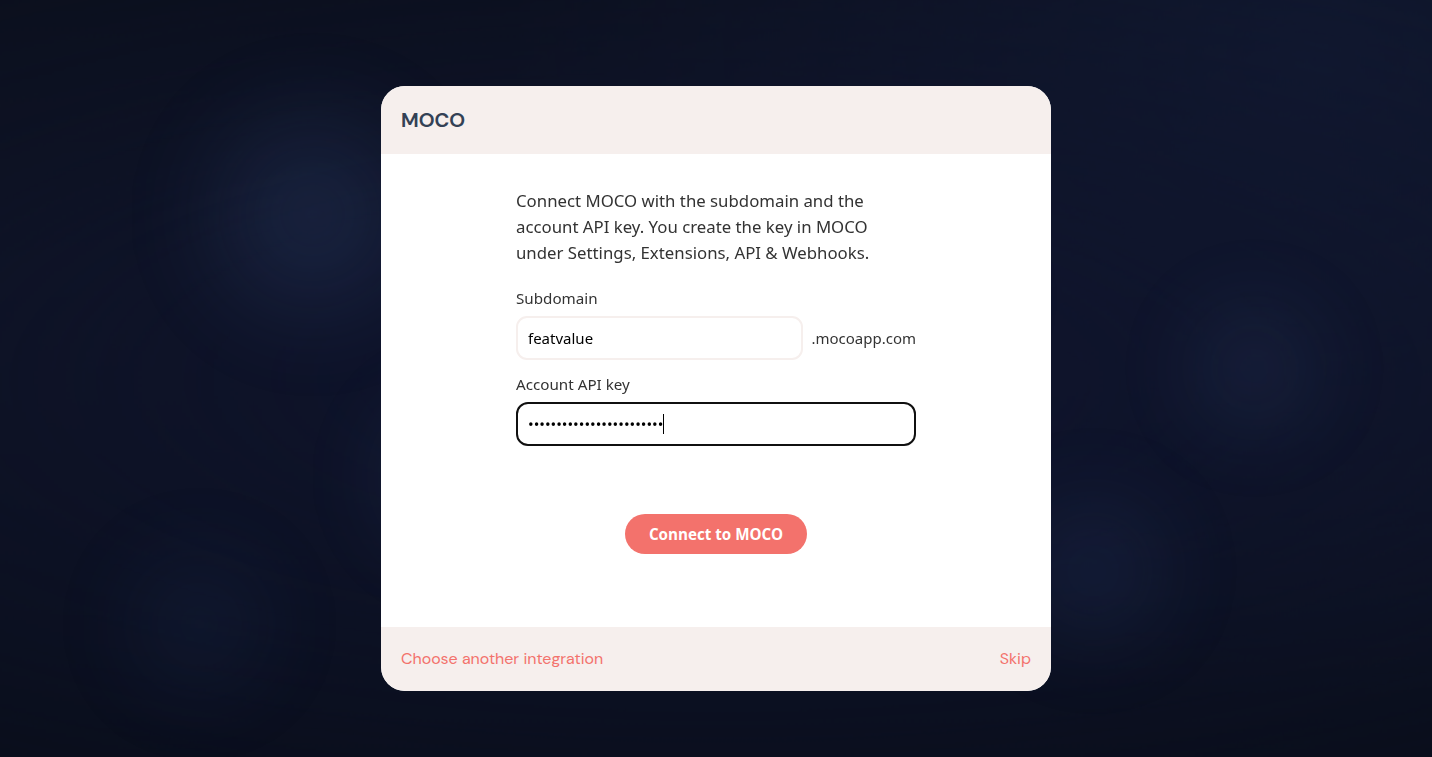
Connect with the subdomain and the account API key

That is all the connection needs. You create the key in MOCO under Settings, Extensions, API and Webhooks; the subdomain is the part before .mocoapp.com. From then on, changes in MOCO reach FeatValue automatically via webhook.

Connect with the subdomain and the account API key – MOCO
MOCO menu in FeatValue

Without switching tools

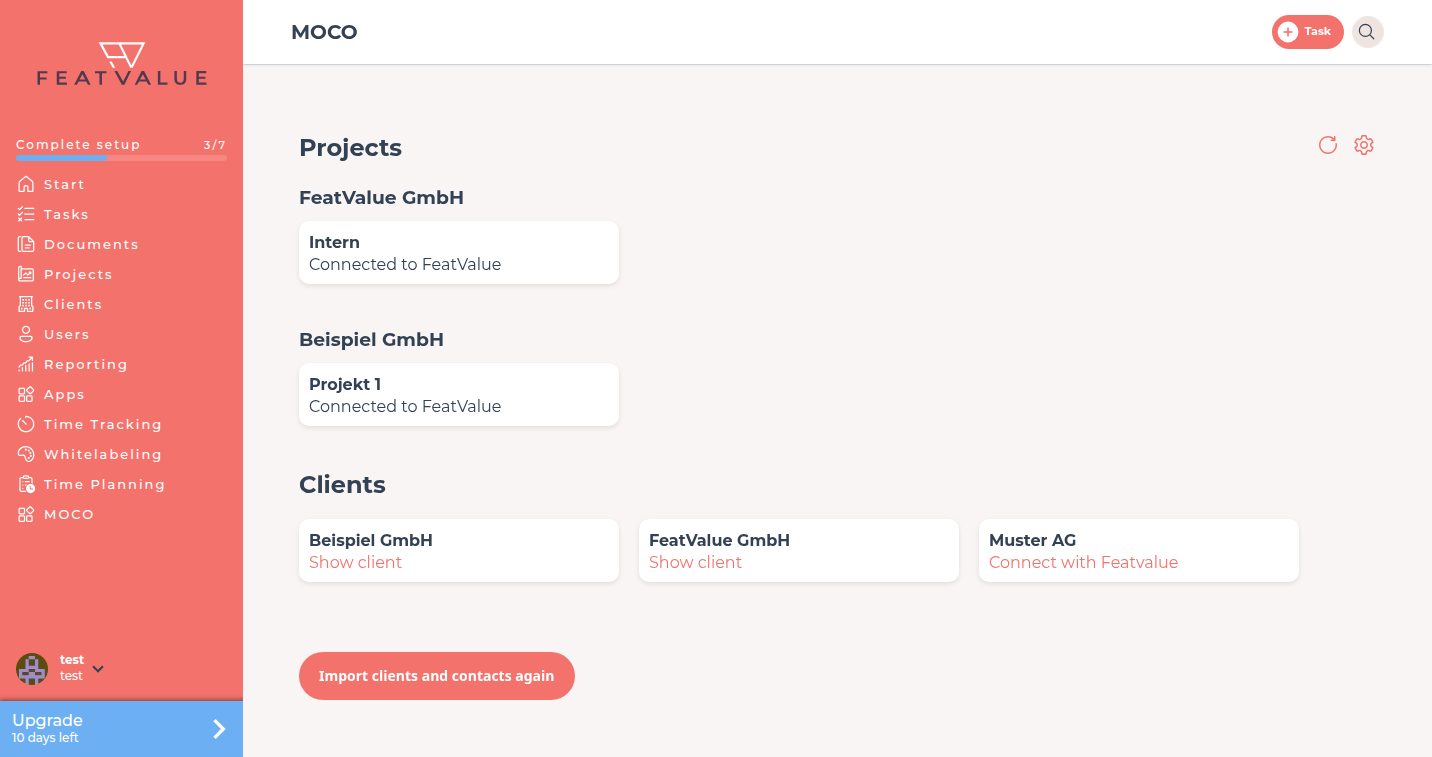
MOCO projects in the portal with one click

The MOCO menu item shows your projects and clients. Import brings a project into the portal, and the gear icon adjusts the features and defaults of the connection.

Set up in minutes

How to connect MOCO with FeatValue

1

Register for free

Enter your email above and create a FeatValue account. Even the Free plan includes all integrations, MOCO too.

2

Connect MOCO

Choose MOCO during onboarding and enter the subdomain and the account API key. FeatValue imports clients and contacts right away.

3

Import projects, invite clients

Import the projects in the MOCO menu item and invite the contacts. Your clients do not need access to MOCO.

Stefan Wienströer

Free setup

We connect MOCO for you – for free

No time for the setup? We connect MOCO, design your portal and set up your workflows. Free of charge, for every plan.

Book a free call More about the free setup

Start now with FeatValue and MOCO

Try for free, invite clients, and collaborate better – your MOCO environment stays exactly as you know it.

No credit card required. Cancel anytime.

+49 251 590 644-60
hello@featvalue.com
Privacy Policy • Imprint • Terms and Conditions