Import time entries
In about 10 minutes you connect your time tracking under Apps and check the imported hours in Time Tracking.
What you will have at the end
- A connected time-tracking app: its card under Apps shows Settings or already installed
- Imported time entries in Time Tracking, matched to client, project and task
- The item Connect time tracking app closed on Complete setup, if it was open
Before you start
- An account with Toggl Track, Clockify or Harvest
- If your tool’s card under Apps no longer shows Install, it is already connected. Start at “Open Time Tracking” then.
Steps
-
Open Apps
Click Apps in the left sidebar and find your tool’s card: Toggl Track, Clockify or Harvest. How the catalog works: Connecting apps.
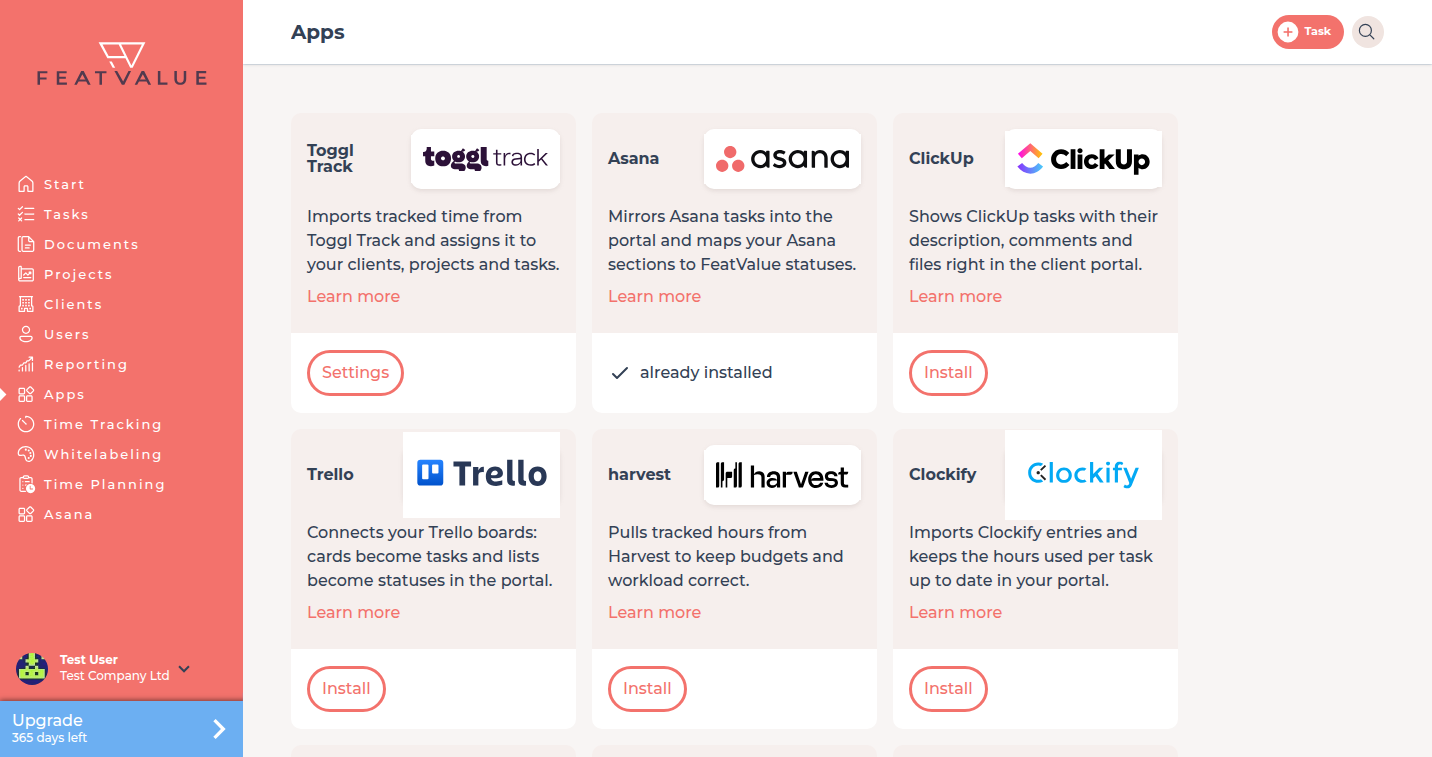
In the demo, Toggl Track is already connected and shows Settings. -
Install the tool
Click Install on the card. FeatValue opens the setup of that integration.
-
Grant access
On App access click Grant access, then sign in to the tool or enter the token it asks for. Afterwards, map clients and projects in the setup.
-
Open Time Tracking
As soon as the first entries are imported, Time Tracking appears in the left sidebar. Click it. The table shows Client, Project, Task, App, Description, From and To. Details: Time entries.
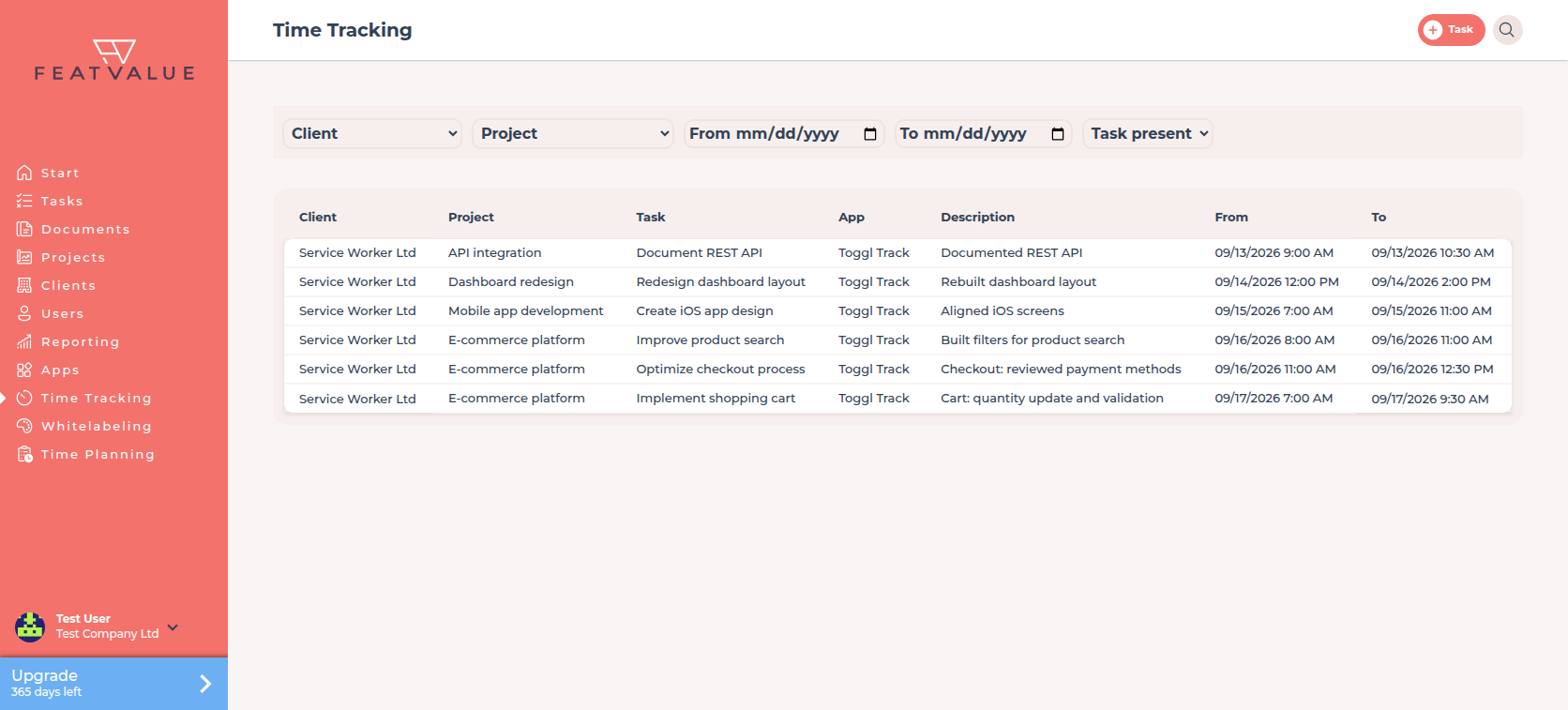
Each row is an imported time range. -
Fill in missing assignments
If the import could not match a row to a client, project or task, click the empty cell. Choose Choose client, Choose project or Choose task and click Save. The filter Task present quickly shows which rows still have no task.
Check your result
Your tool’s card under Apps shows Settings or already installed, and Time Tracking lists the imported hours. Whether your clients see a project’s hours is set on the project with Clients can see recorded time entries. See Client visibility.
Next steps
- Build a reporting dashboard for time widgets
- Plan sprints automatically — automatic sprints need these hours
- Time tracking overview
Your question has not been answered?
We will be happy to help you. You can send us an e-mail or arrange a video conference: