Collect PDF feedback and signatures
In about 15 minutes you upload a PDF under Documents, collect comments right on the file and, on Pro, have a form filled in and signed.
What you will have at the end
- A PDF in a folder you share with a client or a project
- At least one comment on the file
- On Pro: a filled or signed form, if the PDF has form fields
Before you start
- The PDF you want to share
- A client or project to share the file with. See Documents overview
- Pro Pro on your company or on the client involved — for detailed read statistics, fillable forms and signatures
Steps
-
Open Documents
Click Documents in the left sidebar. The start page shows a tile per company and project plus your own folders. Files directly on this start page are visible to your company only.
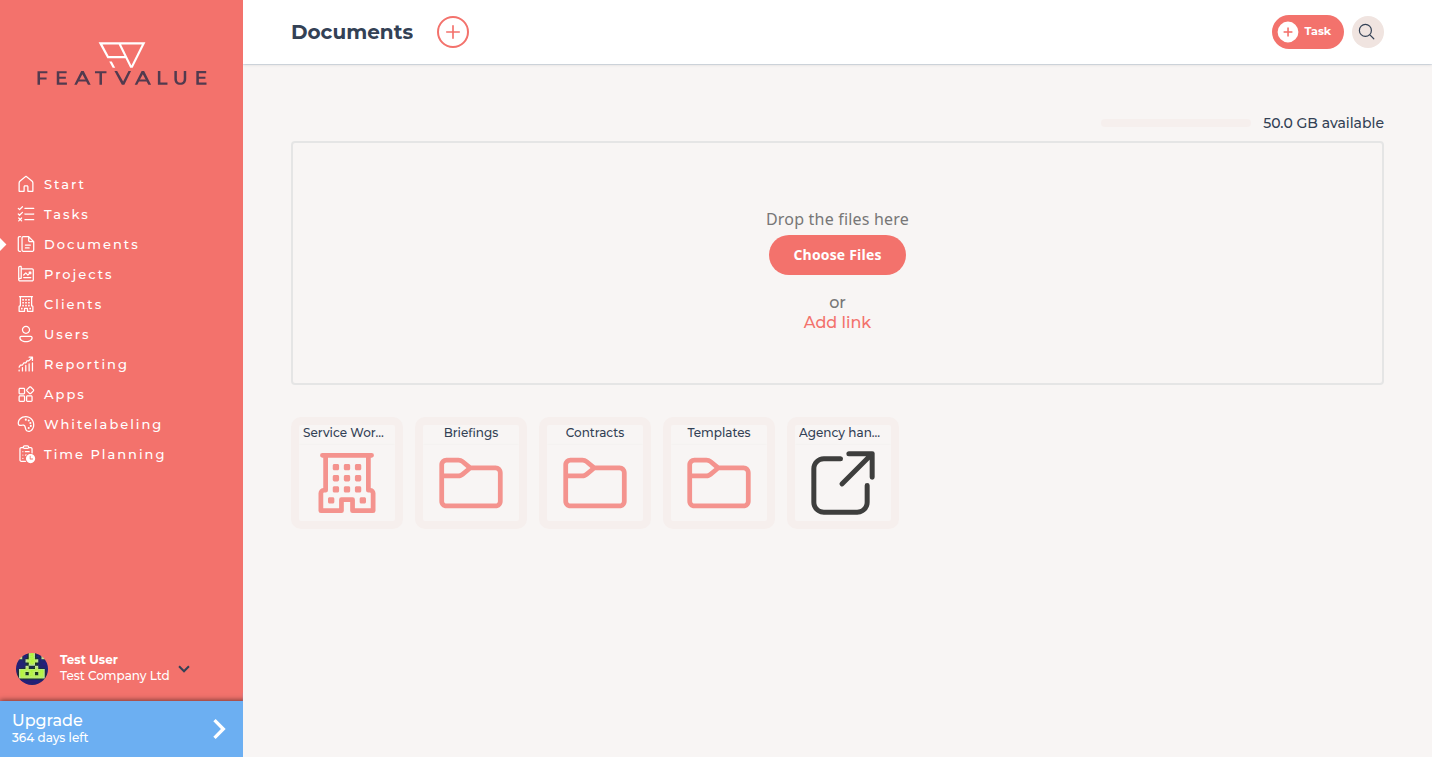
The Documents start page of the demo agency. -
Open the shared folder
Open the client’s company tile to share the file with that client, or a project tile to share it with everyone on the project. If you need a new folder, click + next to the page title; the dialog is Create folder. Details: Folders and links.
-
Upload the PDF
Drag the file into the upload area or click Choose Files. Then click the file tile to open the PDF. The comment panel sits next to it.
-
Comment on the PDF
Write a general comment, or select text and click Comment on selected text. Comment on this spot sets a pin, and Mark region lets you drag a rectangle over an area. Type
@to mention a person. Details: File comments.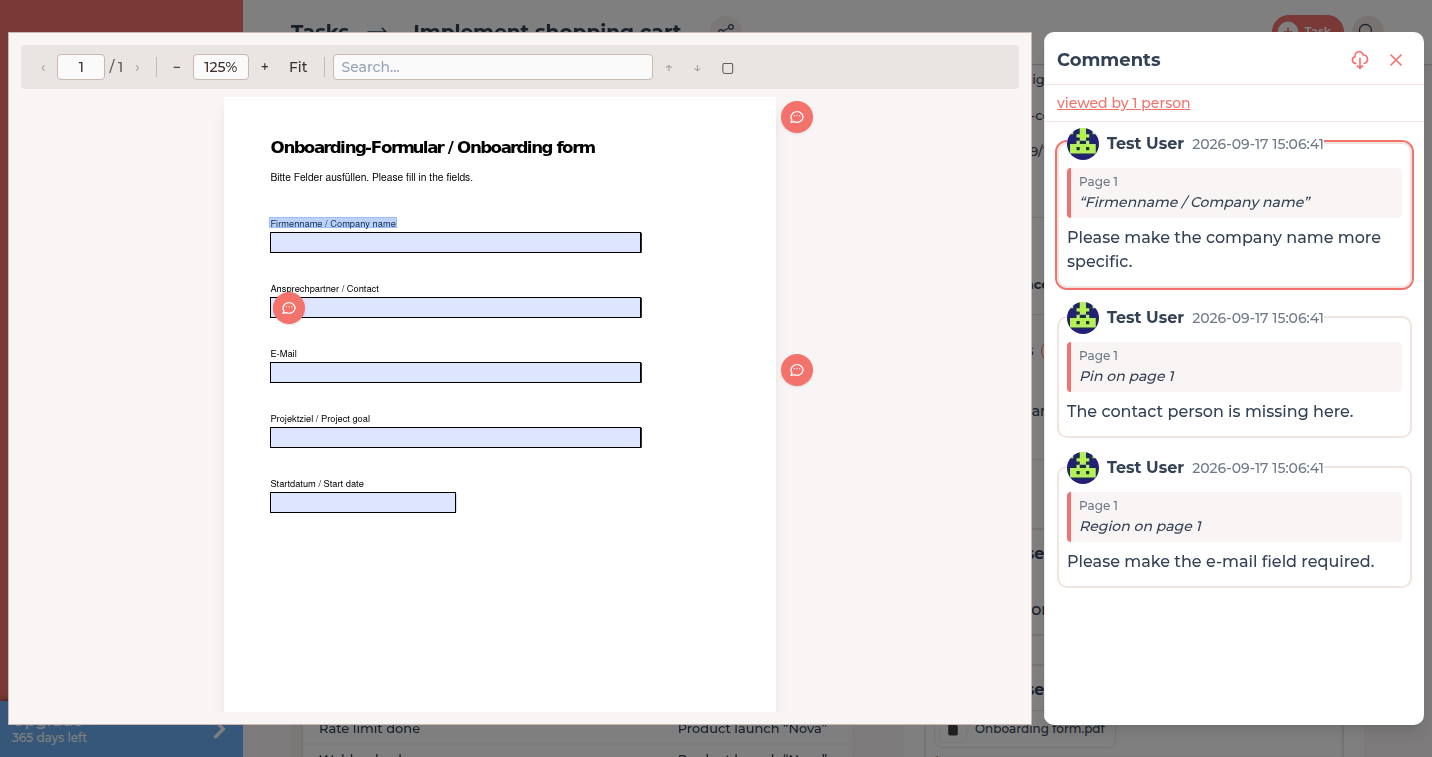
A comment on selected text highlights the passage in the PDF. -
Fill in and sign on Pro
If the PDF has form fields, type into them and click Save. FeatValue adds the comment Document edited with the changed fields. Click Sign, choose Saved signature or Draw signature and click Confirm. FeatValue adds Document was signed. and locks the fields. Details: PDF forms, signatures and tracking.
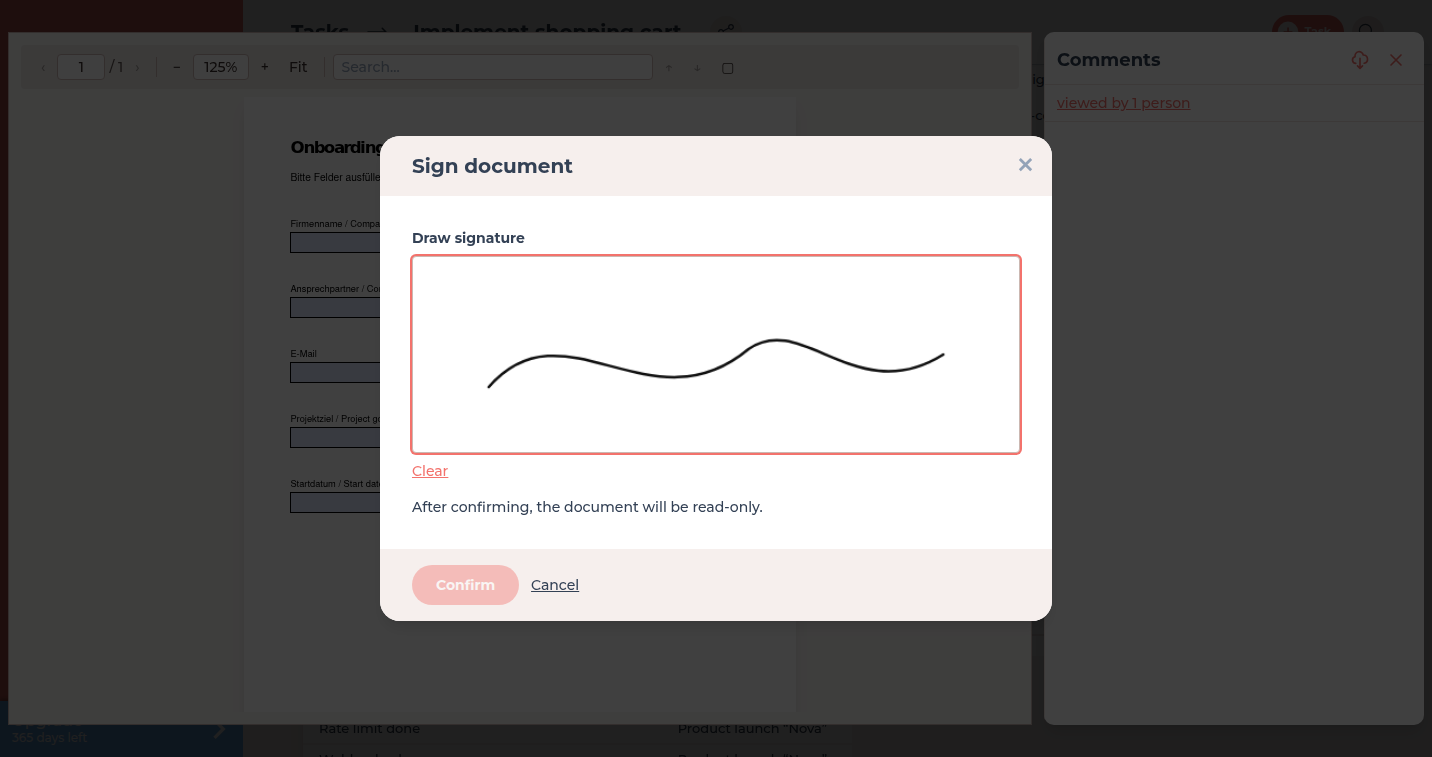
In the dialog you sign with a saved or newly drawn signature.
Check your result
Your client opens the same file under Documents and sees your comments. The top of the comment panel shows how many people viewed the PDF. After a signature, the form fields are read-only.
Next steps
- Client portal basics so your clients find Documents
- Attachments and PDF review when the file belongs to a task
- PDF forms, signatures and tracking for per-page read statistics
Your question has not been answered?
We will be happy to help you. You can send us an e-mail or arrange a video conference: