Folders and links
Folders give your documents a structure, links bring Figma, Miro or Google Docs into the same view. Both work on the company level, in shared client folders and inside projects.
Where folders can live
A folder always belongs to the place where you create it. That place decides who can see it:
- Your company – created on the Documents start page; only your agency sees it.
- A client or service provider – created inside the company tile; shared between the two companies.
- A project – created inside the project tile; visible to the project owner and the assigned service providers.
- Another folder – folders can be nested as deep as you need.
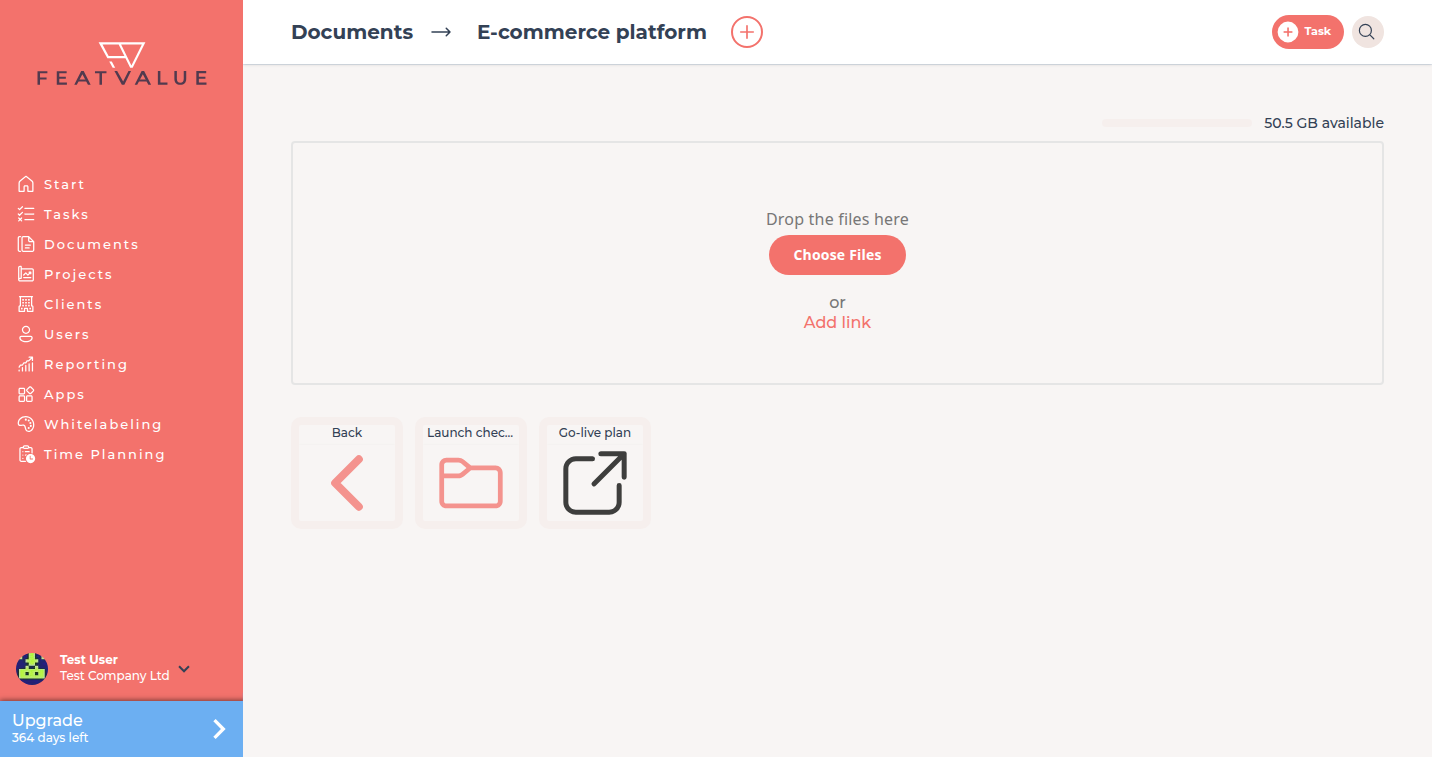
Create a folder
-
Open the target location
Navigate to the start page, a company tile, a project tile or an existing folder. -
Click the plus icon
Click + next to the page title. The dialog Create folder opens. -
Enter a name and save
Type a name and click Create folder. If a folder with the same name already exists at this location, FeatValue appends a number (for exampleBriefings-2).
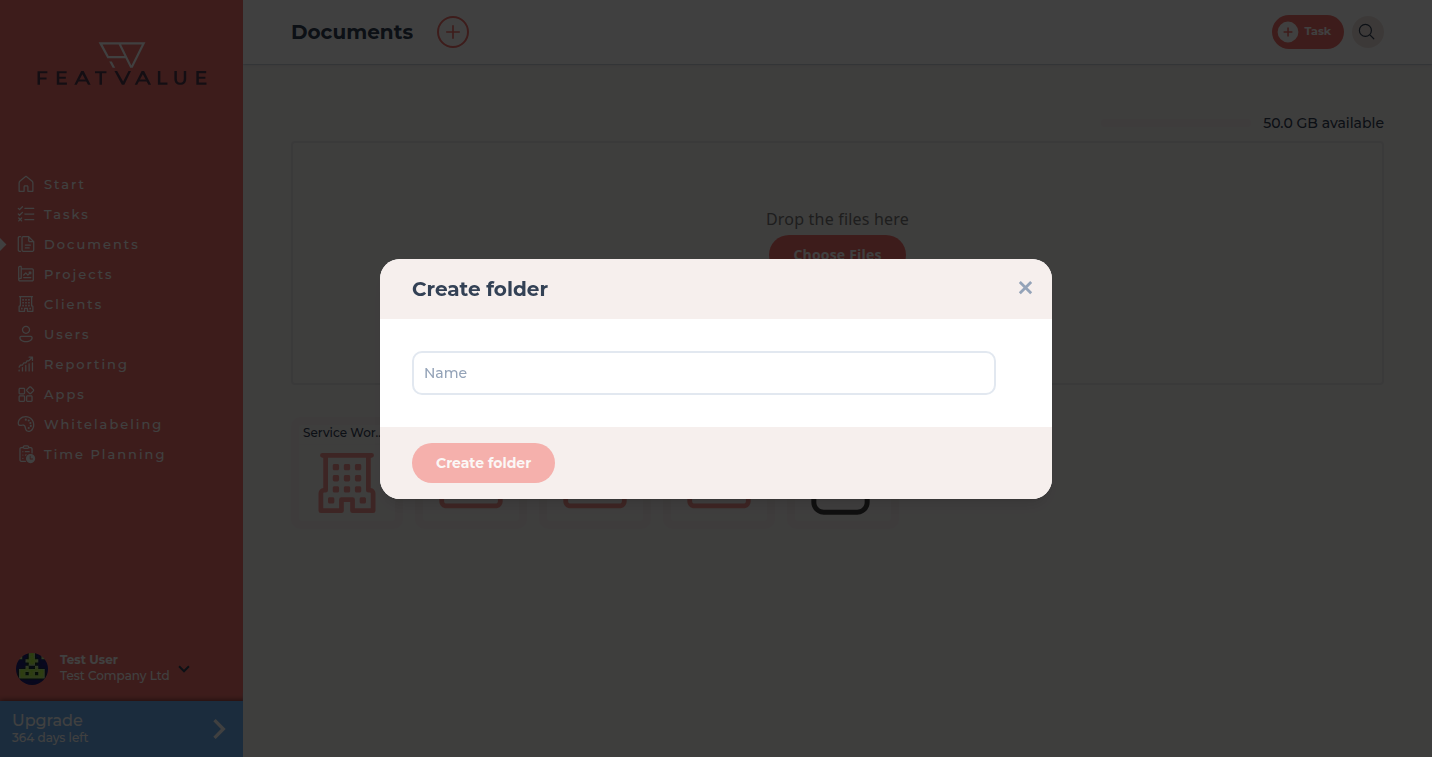
Add a link
Links are entries that point to an external URL instead of an uploaded file. They show up as tiles with an arrow icon and open in a new tab.
-
Click Add link
Below the upload area click Add link. -
Enter name and URL
Give the link a readable Name (this is what people see on the tile) and paste the URL. The URL must start withhttps://. -
Confirm
Click Add link. The tile appears immediately in the current location.
Links do not use storage and always point to the latest version in the external tool – ideal for living documents such as design files or shared spreadsheets. Upload a file instead when you need read tracking, comments on the content or a fixed version to approve.
Navigate
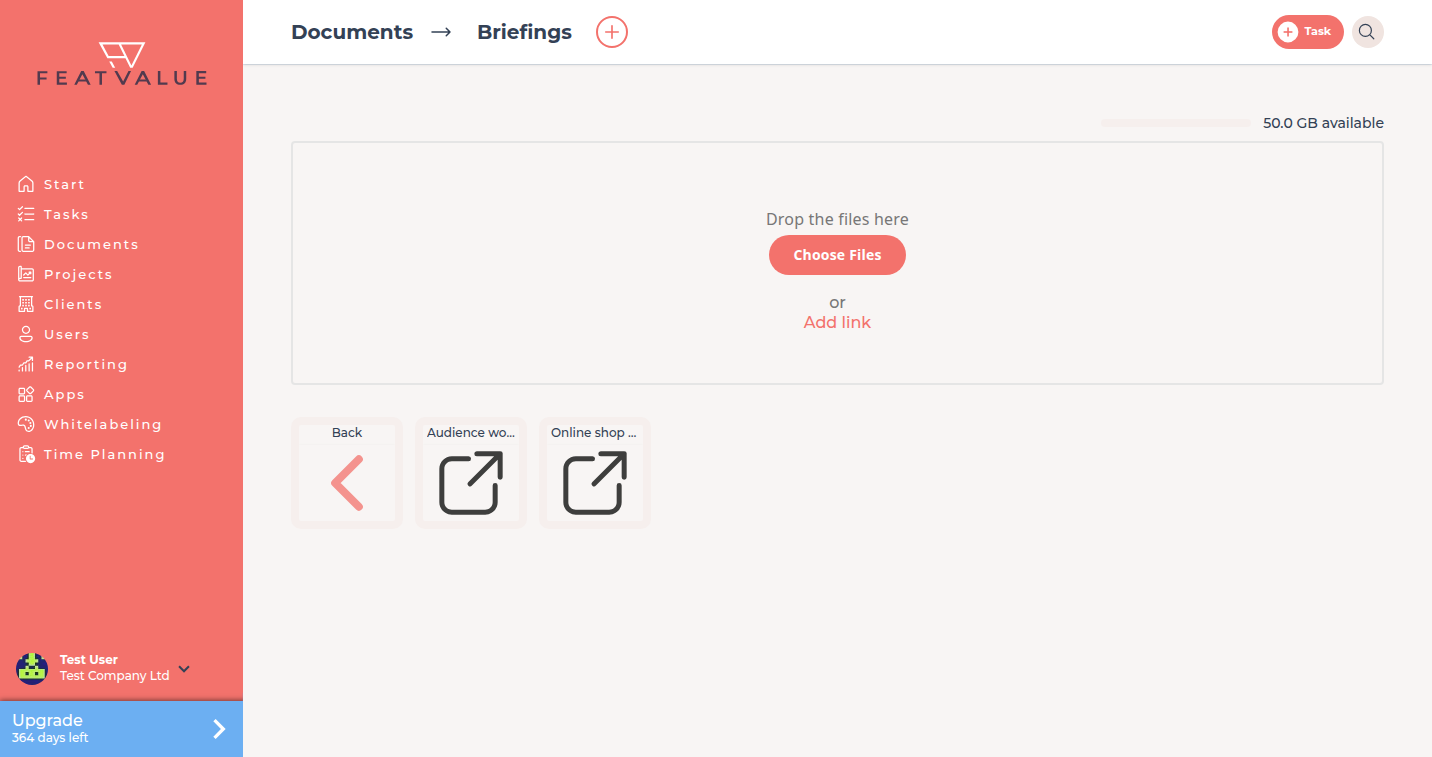
The header shows the path Documents → Folder. Use the Back tile or the parent entry in the header to move up one level. Tiles are sorted alphabetically: companies and projects first, then folders, then files and links.
Options
| Element | What you can do |
|---|---|
| Folder | Open, create sub-folders, upload files, add links. Storage of a folder is the storage of the company (or companies) it belongs to. |
| File | Open, download, comment, see who has read it. PDFs additionally: fill forms and sign (Pro). See PDF forms, signatures and tracking. |
| Link | Open in a new tab. No storage, no read tracking. |
Good practice
- One top-level folder per topic (Briefings, Contracts, Templates) on the company level, project-specific material inside the project tile.
- Put files a client should see into the client's company tile or the project – never on your own start page.
- Name links after the content, not the tool: Styleguide (Figma) instead of Figma.
- Files that belong to a single task are better attached to the task – they appear in the viewer with a link to the task. See Attachments and PDF review.
Your question has not been answered?
We will be happy to help you. You can send us an e-mail or arrange a video conference: