Documents overview
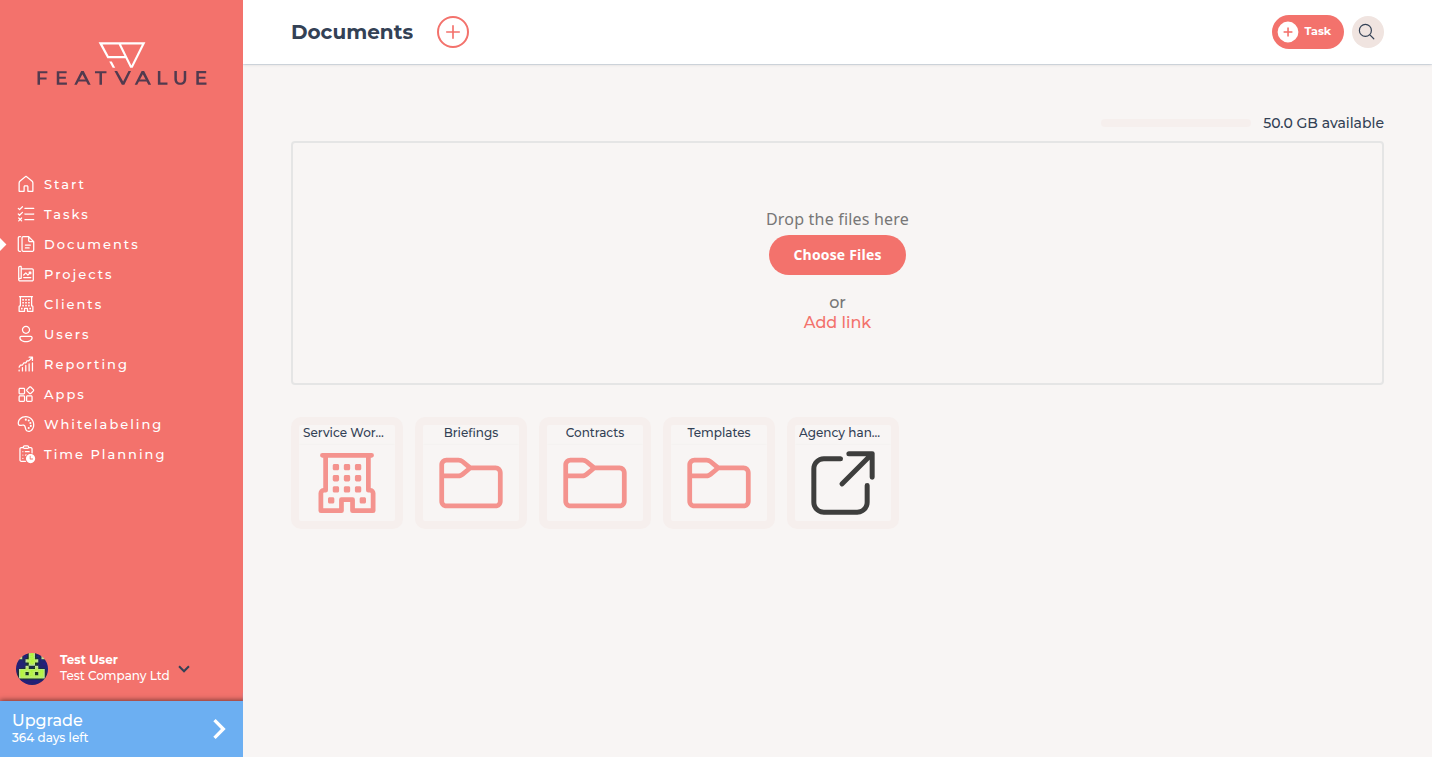
Documents is the shared file area of FeatValue. You and your clients see the same folders, files and links – with read tracking and comments directly on the document.
What documents are for
Briefings, proposals, contracts and design files usually end up scattered across e-mail threads. In FeatValue you store them next to the projects and companies they belong to, so everyone works with the same version and you can see who has actually opened a PDF.
- Company files of your company – visible to your team.
- Shared client folders – one folder per client or service provider that both sides can fill.
- Project folders – files that belong to one project and its members, when that project has its own folder.
- Links to external tools (Figma, Miro, Google Docs) alongside uploaded files.
Where to find it
Click Documents in the left sidebar. The start page shows one tile per connected company, one tile per own project that has a documents folder, your folders and the files in the root of your company. Projects without their own folder show their files in this list.
How it works
-
Pick the right place
Open the tile of a company to share with that client or provider, a project to share with everyone in that project, or stay on the start page for files only your company should see. -
Upload files or add a link
Drag files into the upload area or click Choose Files. For external tools click Add link, enter a name and a URL starting withhttps://. -
Organise with folders
Use the + icon in the header to create a folder. Folders can be nested. See Folders and links. -
Open, discuss and track
Click a file to open it. PDFs get page tracking, comments on selected text and fillable forms. See PDF forms, signatures and tracking and File comments.
Who sees what
| Location | Visible to |
|---|---|
| Start page of Documents (your company) | Users of your own company |
| Company tile (client or service provider) | Users of both companies – the folder is shared between you and that company |
| Project tile | The project owner and the service providers assigned to the project |
| Task attachments | Everyone who can see the task; they also appear in the viewer with their task link |
Access follows your project roles – see Roles and access and Portal access.
Storage and plans
The bar in the top right shows the free storage of the current location. Uploads count towards the storage of your company; in shared folders the storage of all participating companies is added together. Links do not use storage.
| Plan | Storage |
|---|---|
| Free | 500 MB |
| Starter | 10 GB |
| Pro Pro | 50 GB |
| Enterprise | 500 GB or as agreed |
Troubleshooting
The upload area says the storage is used up
Your company has reached its plan limit. Delete outdated files from tasks, use links instead of copies, or upgrade the plan. The exact free amount is shown in the storage popup.
A client cannot see a file
Check where you uploaded it: files on your own start page are private to your company. Move the content into the client's company tile or the project folder the client belongs to.
Your question has not been answered?
We will be happy to help you. You can send us an e-mail or arrange a video conference: