PDF forms, signatures and tracking
For PDFs in FeatValue you see who has read them, fill in forms and sign them.
What you can do in a PDF
A click on a PDF opens it – from Documents, a shared folder, a project or a task attachment. Three things live together there:
- Read tracking (who opened it, which pages, for how long)
- Fill in forms directly in the fields
- Sign with a saved or drawn signature
Links to Figma or Google Docs open the tool, not the file in FeatValue. Upload a file when you need proof of reading or a form.
Where to find it
Click the file tile in Documents or the attachment in a task. The file opens with the comment panel on the side.
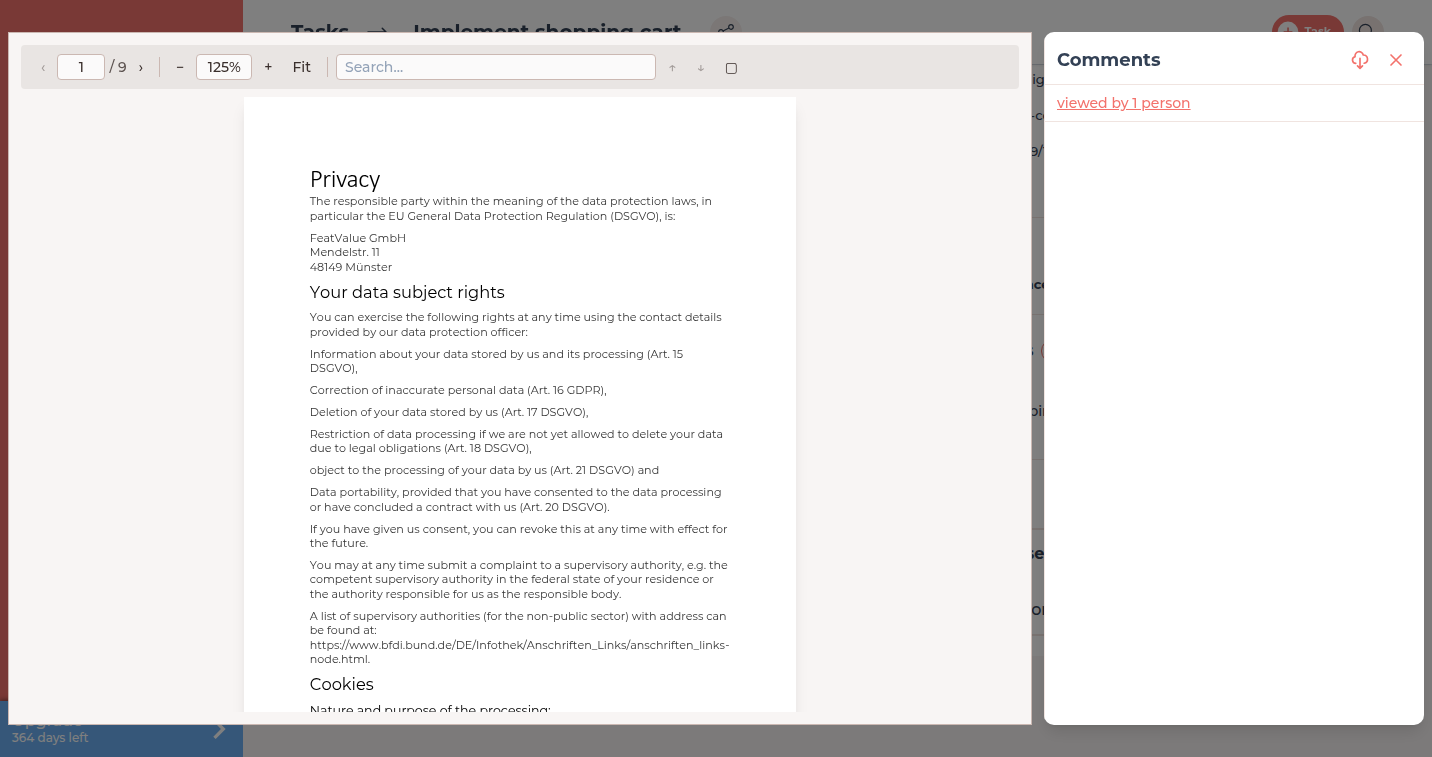
Read tracking
Tracking starts as soon as someone opens the file in FeatValue. No plugin or e-mail confirmation is needed.
| Signal | Recorded |
|---|---|
| Viewing session | Opened and closed time, total reading duration per person |
| Pages | Which pages of a PDF were displayed, how often and when last |
| Downloads | Whether a person downloaded the file |
-
Read the summary
At the top of the comment panel you see viewed by 3 people (or viewed by 1 person) and whether the file was downloaded. -
Expand the details
Click the summary to list every reader with the pages they viewed (Pages 1, 2, 5), their reading time and the last time they opened the document. This list requires Pro – see Permissions and plans.
@mention is usually all it takes. See Review and acceptance.
Fill in and sign forms
If a PDF contains form fields, they appear as editable fields. Without Pro you see the notice This PDF contains form fields. With FeatValue Pro you can fill in the form directly.
-
Fill in the fields
Type directly into the fields. FeatValue validates e-mail addresses, dates, phone numbers and numbers and lists invalid fields before saving. -
Save
Click Save. FeatValue stores a new revision of the PDF and adds the comment Document edited with the list of changed fields, so everyone can follow what changed. -
Sign
Click Sign. Use your Saved signature or Draw signature, then Confirm. The document is stamped Signed via FeatValue by [name] on [date], the comment Document was signed. is added and the form becomes read-only.
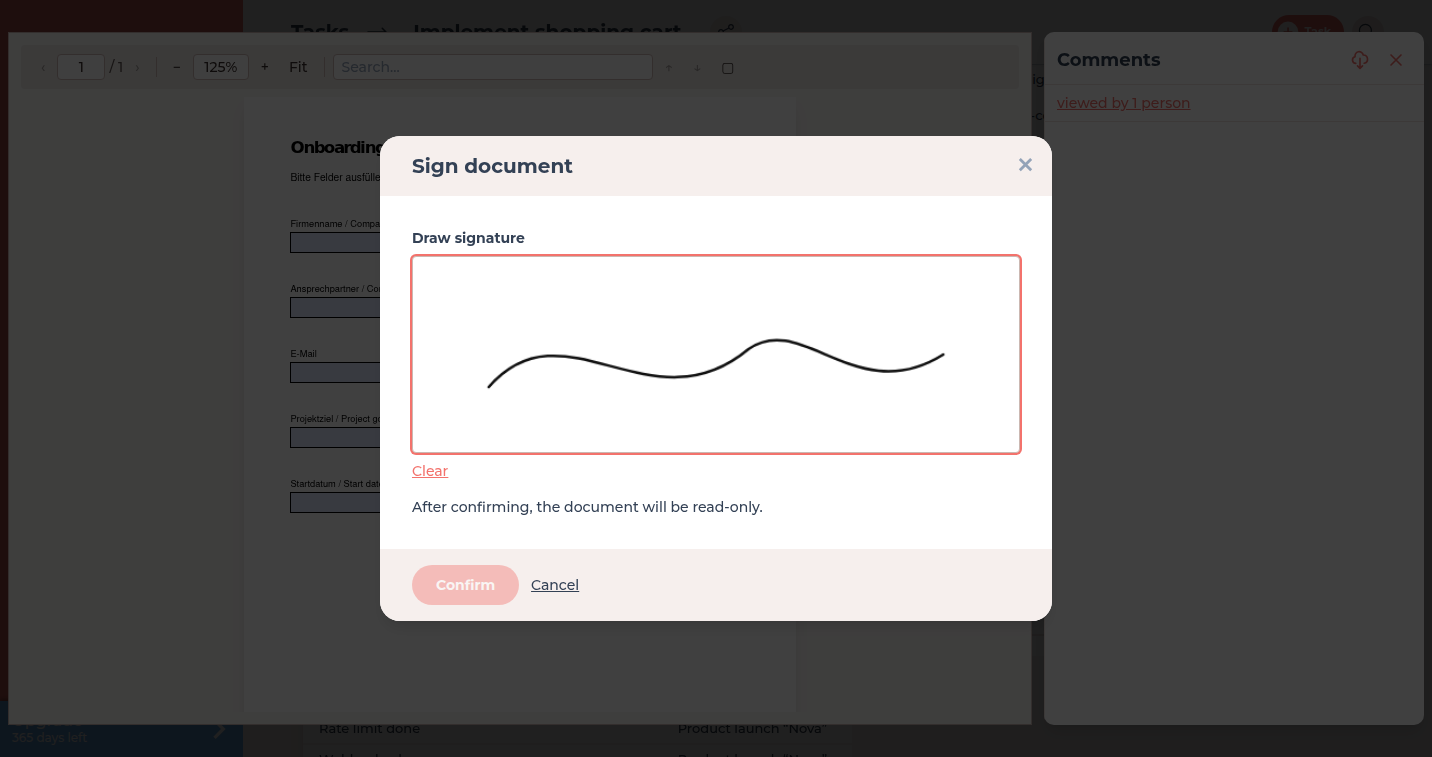
Your drawn signature can be stored in your account and reused for the next document. A guided walkthrough is in Collect PDF feedback and signatures.
Permissions and plans
| Feature | Free / Starter | Pro Pro and Enterprise |
|---|---|---|
| Number of readers and download indicator | Yes | Yes |
| Who read which pages, for how long, when | – | Yes |
| Fill in PDF forms | – | Yes |
| Sign PDF forms | – | Yes |
It is enough that one of the companies involved in the file is on Pro or Enterprise. Details: Plans.
Troubleshooting
The summary says nobody has viewed the file, but the client confirmed reading it
Only views in FeatValue are counted. If the client downloaded the file from an e-mail notification or opened a link, no page tracking exists. Ask them to open the file in the portal.
Reader details are missing
You see viewed by 2 people but cannot expand the list. None of the companies involved in this file is on Pro or Enterprise.
Your question has not been answered?
We will be happy to help you. You can send us an e-mail or arrange a video conference: