Time entries
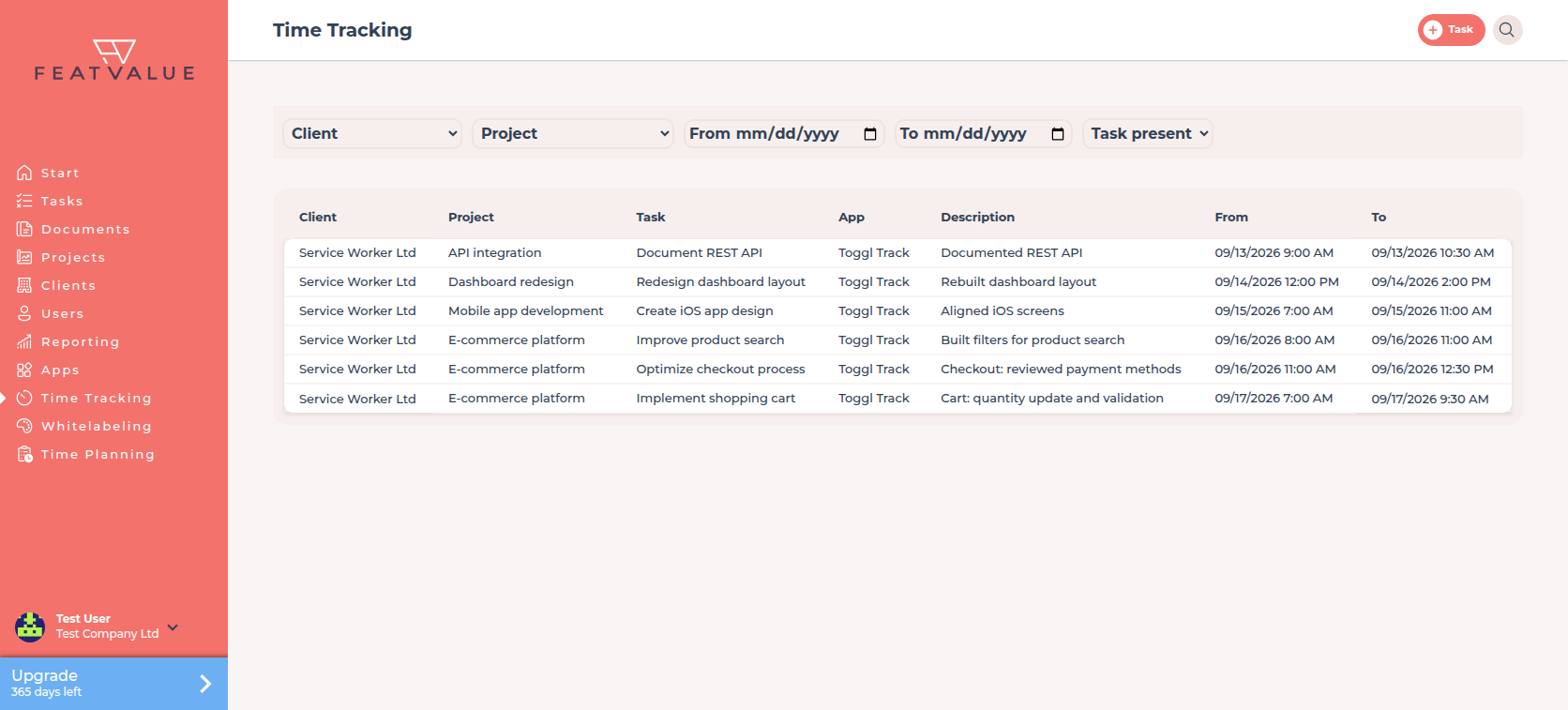
Time entries are the rows under Time Tracking. Each row is one recorded period on a client, project and, when known, a task.
What it is for
Use the grid to check which hours arrived and to assign imported rows to the right client, project and task.
Overview: Time tracking overview. Client view: Client visibility.
Where to find it
Open Time Tracking. FeatValue shows the grid as soon as your company has entries.
How it works
-
Read the columns
The grid shows Client, Project, Task, App, Description, From and To. Filter by client, project, from, to, or Task present. -
Assign client, project or task
Click a cell that still needs an assignment. Choose Choose client, Choose project or Choose task, then Save. -
Watch for gaps
The Task present filter quickly shows rows without a task. Those hours do not count towards a task yet.
Options
| Column or action | What it does |
|---|---|
| Client | Owner of the project, or the client you assign. |
| Project | Project the hours belong to. |
| Task | Task the hours belong to, when set. |
| App | Source app, for example Toggl Track, Clockify or Harvest. |
| Description | Text the time app delivered with the entry. |
| From / To | Start and end of the recorded period. |
| Task present | Filter for rows with or without an assigned task. |
Permissions
The grid shows your company’s time entries. Clients see rows only when the project allows it. See Client visibility.
Troubleshooting
The page says no time entries
The empty text is No time entries found yet. Connect a time app under Apps and wait for the first import.
A row has no task
The import could not find a matching task. Assign one with Choose task.
Your question has not been answered?
We will be happy to help you. You can send us an e-mail or arrange a video conference: