Overview
Time Tracking lists the hours FeatValue imported from your time app. The menu appears only after time entries exist for your company.
What it is for
Use Time Tracking to see who worked on which client, project and task. Automatic sprint planning also reads these hours as used time.
- Review the imported entries
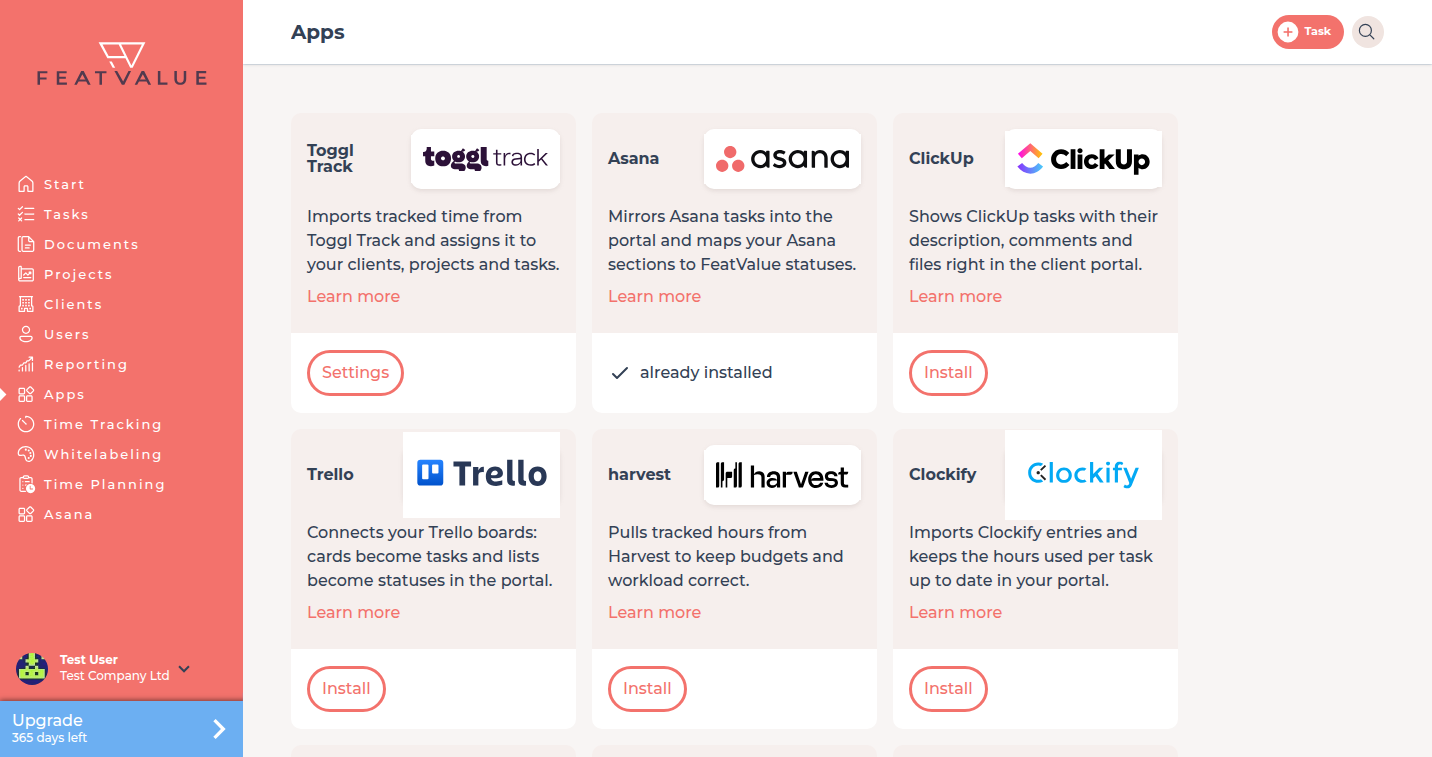
- Bring in hours from Toggl Track, Clockify or Harvest
- Decide whether a client may see times on a project
Where to find it
Click Time Tracking in the left sidebar. The item stays hidden until the first entry arrives — so until a time app is connected, or an app that counts as time tracking, such as Scoro.
How it works
-
Connect a time source
Open Apps and connect your time tool, for example Toggl Track, Clockify or Harvest. How to connect: Connecting apps. -
Wait for the first entries
FeatValue pulls the recorded periods from the connected app. The App column shows where an entry came from. -
Open the grid
Click Time Tracking. FeatValue opens the entries list. Details: Time entries. -
Fill in a missing assignment
If the import could not match Client, Project or Task, add it in the row. See Time entries. -
Set client visibility
On the project, a service worker can turn on Clients can see recorded time entries when the project already has times. See Client visibility.
Which tools deliver times
| Tool | How it counts |
|---|---|
| Toggl Track | Time-tracking app. Connect it under Apps. |
| Clockify | Time-tracking app. Connect it under Apps. |
| Harvest | Time-tracking app. Connect it under Apps. |
| Scoro | Counts as time tracking once connected. Time Tracking can then appear without a separate time tool. |
Permissions
Anyone in the company who can open Time Tracking sees the company entries. Only a service worker changes client visibility, and only on a project that already has times. Automatic sprints use these hours; see Sprints.
Troubleshooting
Time Tracking is missing from the sidebar
Your company has no time entries yet. Connect a time app under Apps, then wait until the first entry exists.
The list is empty after you connect an app
The import may still be running, or the app has no entries in the selected period. Check the connection under Apps.
An entry shows the app but no task
The import had no matching task. Assign one with Select task in the row.
Your question has not been answered?
We will be happy to help you. You can send us an e-mail or arrange a video conference: