Review and acceptance
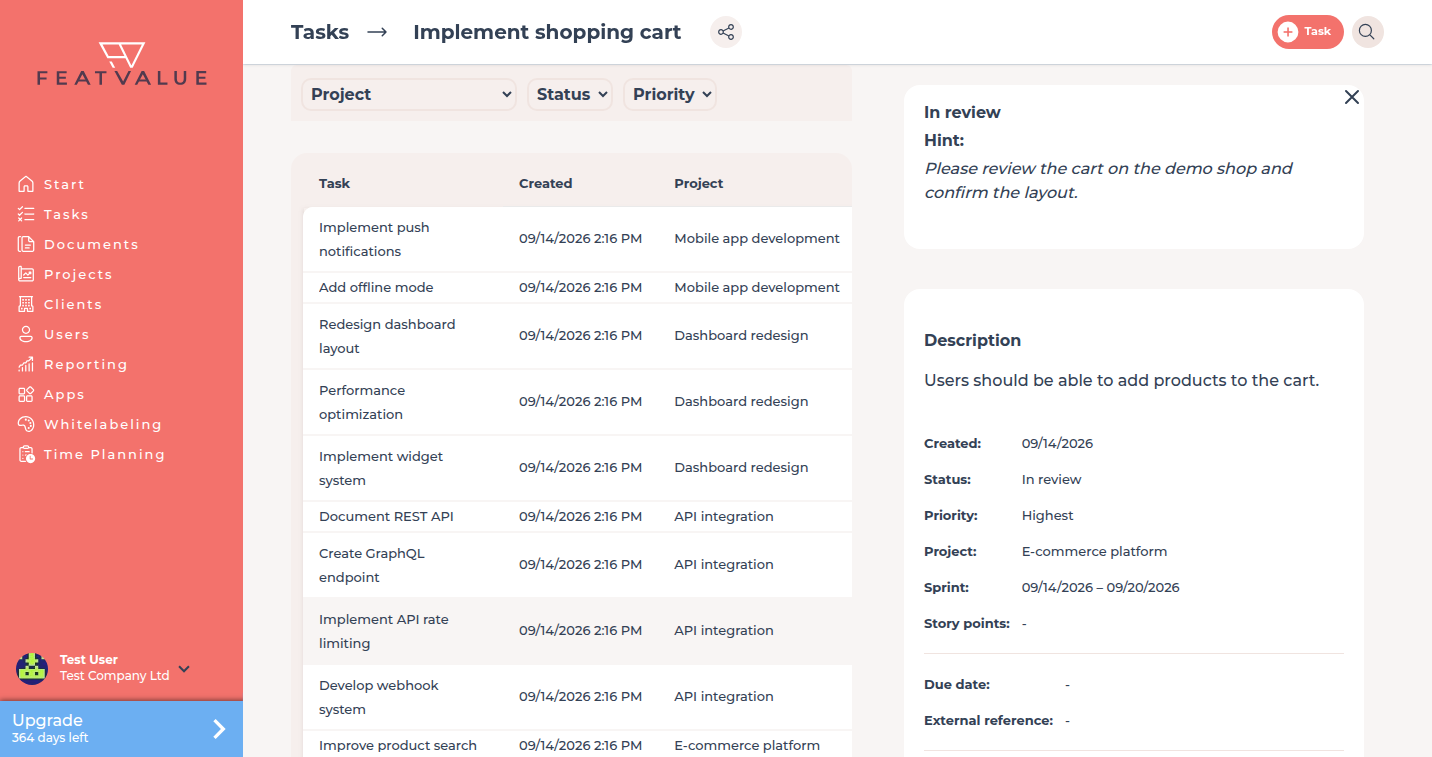
Review is the client acceptance step. The service provider starts the review. The client requests a revision or accepts the work. Comments stay locked while the task is in review.
What it is for
The review replaces approval by e-mail. The client checks the work on the task and answers in FeatValue.
Which workflow step is the client review is set under Client review status (the review toggle on the status).
Where to find it
Open the task from Tasks. The service provider starts the step with Start review.
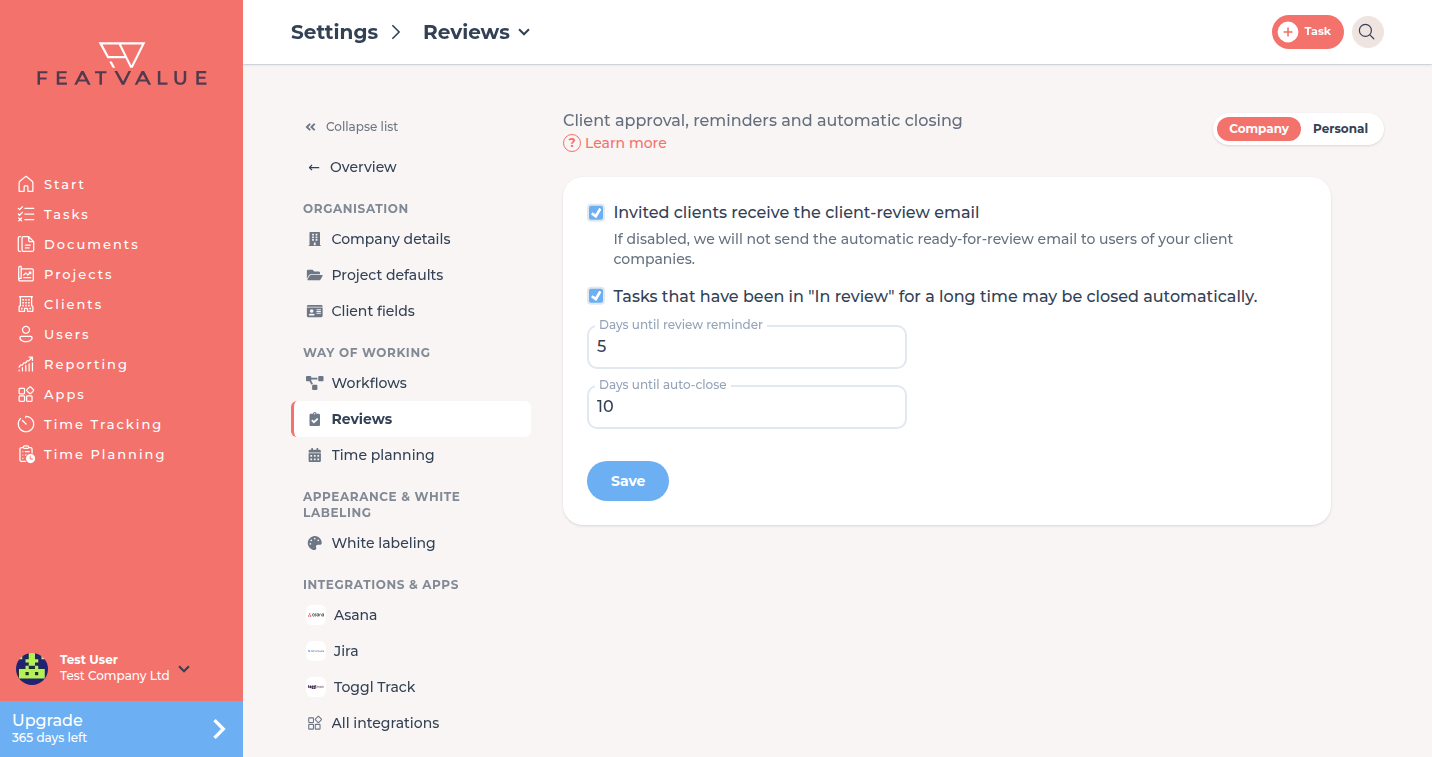
Reminder and auto-close live under Settings › Company › Reviews.
How it works
-
Set the review step in the workflow
Open the workflow and mark the status that triggers client review. Details: Client review status and Workflows. -
Finish implementation
Keep the task in a working status (for example In progress) until the work is ready. -
Start the review
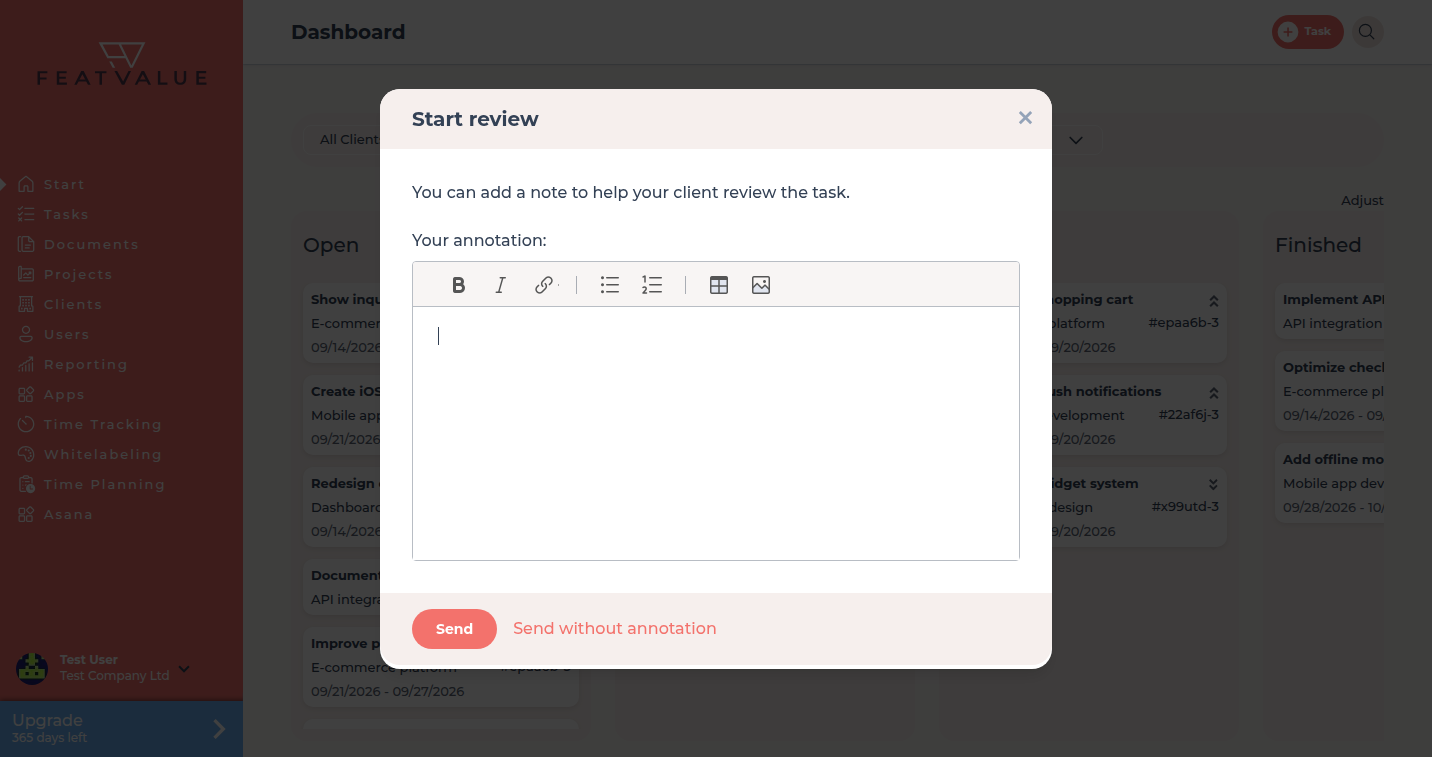
Click Start review. You may add an Acceptance note for your client. The task moves to the review status of your workflow (often In review). -
Client checks the work
The client reads the Acceptance note and the attachments. Comments on the task stay locked. Feedback goes through the review. -
Request a revision or accept
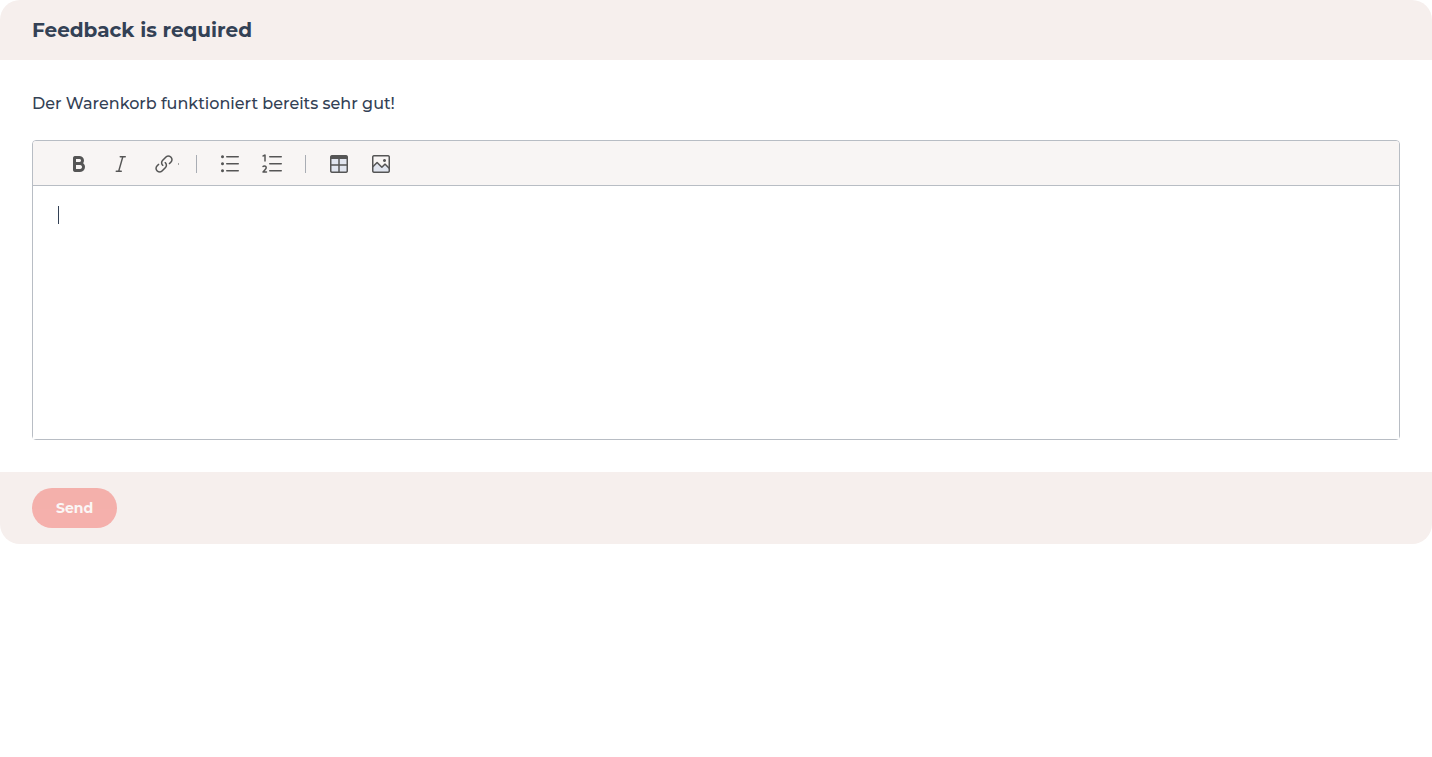
The client clicks Request revision or accepts the work. A revision sends the task back for changes.
Options
| Option | What it does |
|---|---|
| Start review | The service provider sends the task to the client. |
| Acceptance note for your client | Note text the client sees during review. |
| Request revision | The client asks for changes and can give a reason. |
| Days until review reminder | Default 5 days. Set under Settings › Company › Reviews. |
| Days until auto-close | Default 10 days. Must be greater than the reminder. |
Review settings
Under Settings › Company › Reviews you decide how reviews work for your whole company. The tile sits in the Way of working group and appears once your company has clients.
- Invited clients receive the client-review email: if unticked, FeatValue does not send the automatic ready-for-review email to users of your clients.
- Tasks that have been in "In review" for a long time may be closed automatically.: turns reminder and automatic closing on.
- Days until review reminder and Days until auto-close: empty values become 5 and 10 when you turn the option on. Auto-close must come after the reminder.
Permissions
The service provider starts the review. The client accepts or requests a revision. A service provider needs Review tasks when that setting is in use. See Roles and access and Creating and editing tasks.
Troubleshooting
The client cannot write a comment
That is expected while the task is in review. Ask them to use Request revision.
The task closed by itself
Check Days until auto-close under Settings › Company › Reviews. The default is 10 days after the task entered review.
Your question has not been answered?
We will be happy to help you. You can send us an e-mail or arrange a video conference: