Dashboard
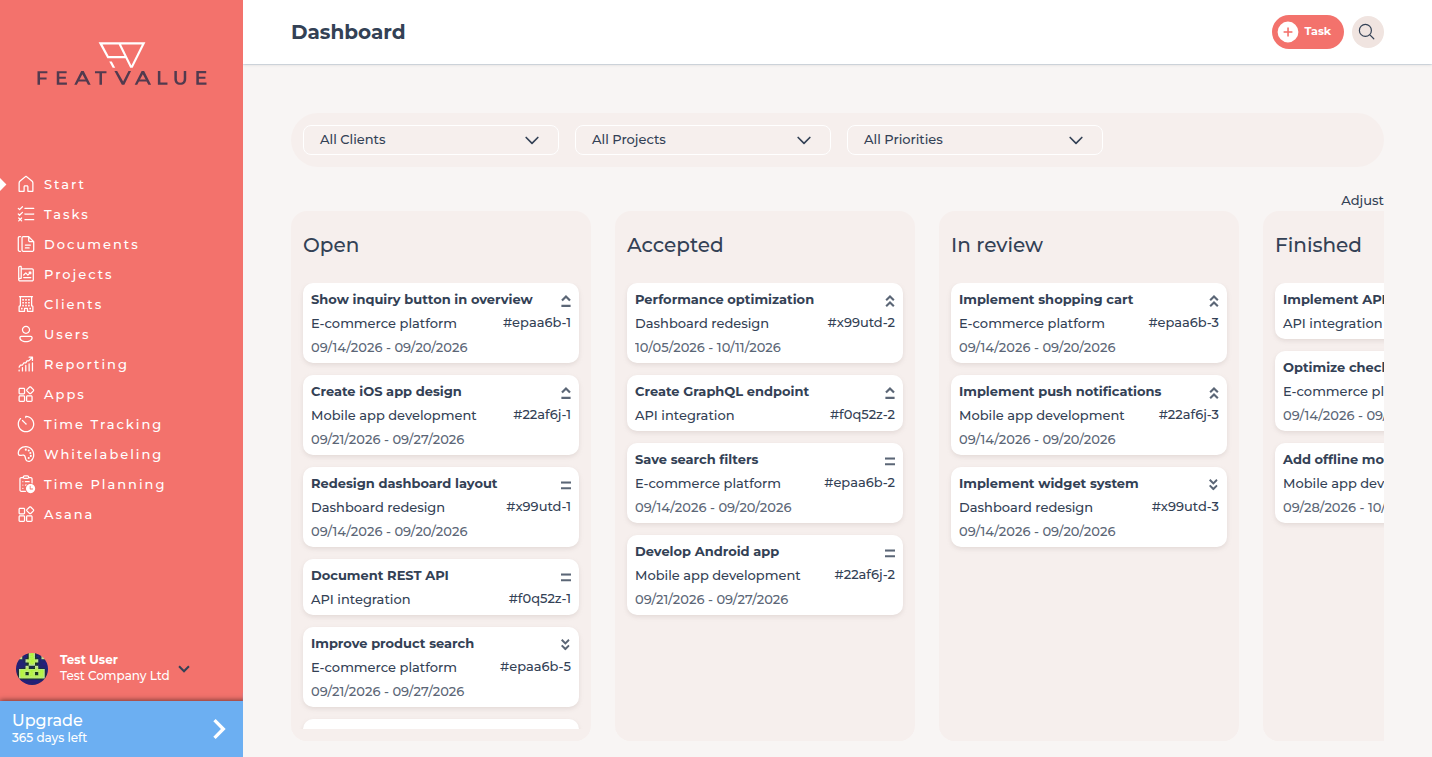
The dashboard is the home screen after sign-in. Tasks sit in columns by status. Drag a card to change its status.
What the dashboard is for
Use the dashboard when you need the state of work at a glance and want to move tasks between statuses without opening the task list.
- See open, in-progress, review and done work in columns
- Drag a task into another status
- Open a card to work on comments, files and review
Where to find it
After sign-in, FeatValue opens the dashboard. In the sidebar you find it under Start.
How it works
-
Read the columns
Each column is a status from the project workflow. The labels come from the workflow, not from fixed app names. -
Move a task
Drag the card into the column for the next status. FeatValue runs the same transition as the status button on the task. Cards without an allowed status change on the dashboard cannot be dragged. When you hover over such a card, a tooltip says that no status change is possible. You can still open the task with a click. -
Open a task
Click the card to see the description, comments and attachments. -
Adjust the dashboard
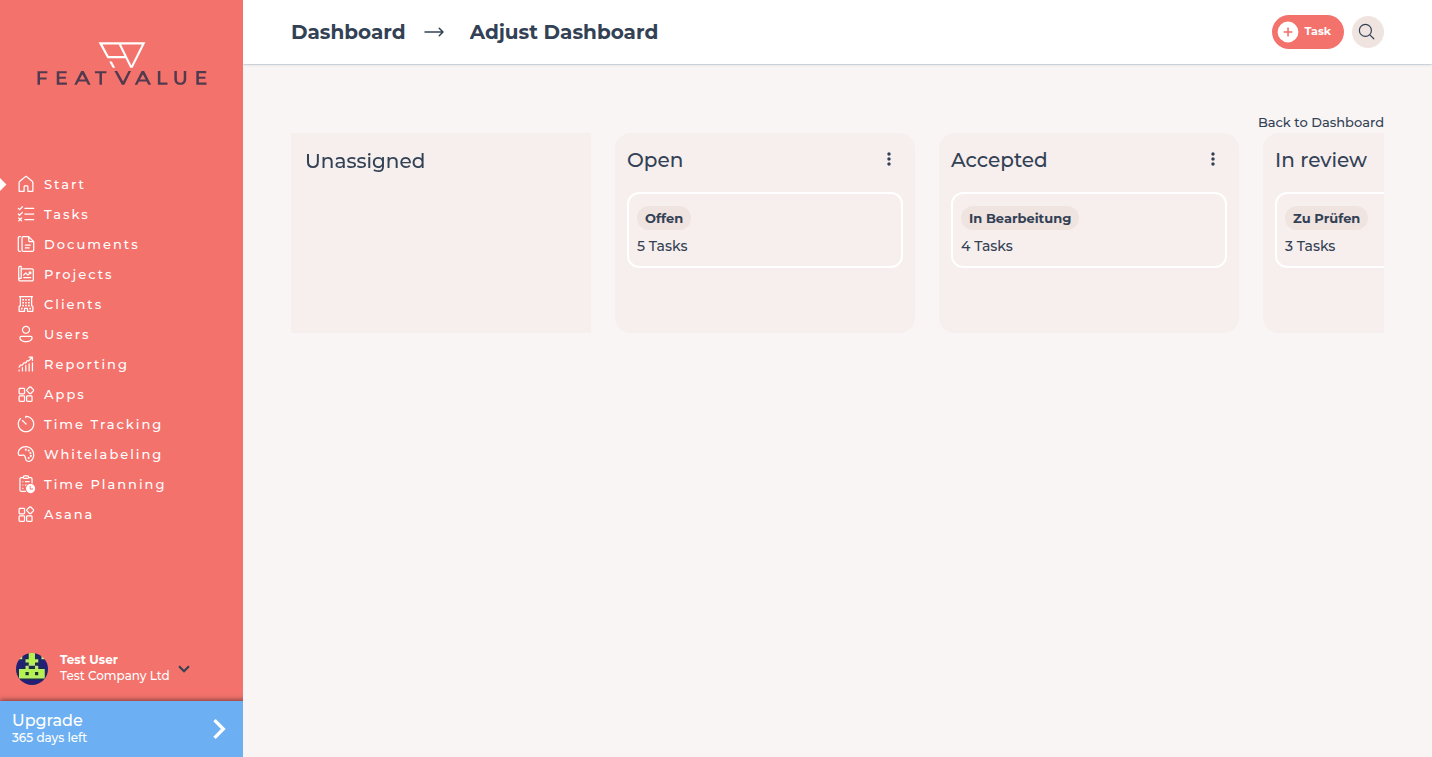
Use Adjust to choose which workflow columns appear on the dashboard. Statuses and transitions themselves are managed under Workflows. When your agency changes the columns, the client view updates automatically as well. A client can also adjust the view for themselves — then they see different columns than the agency.
Cards and priority
Each card shows the name, project, token and — if set — the implementation period. The priority icon is at the top right.
If the implementation period is set and the end date has passed (or, if there is no end date, the start date has passed), the priority icon is replaced by ⏳ with the tooltip Delayed. Those cards appear at the top of the column. This only applies when the current status has the toggle Include in due date — typically while the task is still with the service provider. You set the toggle under Statuses and toggles.
Permissions
You can only move tasks whose transition you may run. Who may run a transition is under Transitions.
Troubleshooting
The card will not drop
There is no allowed transition between those two statuses, or your role cannot run it. Check the workflow. If the dashboard has no column you are allowed to move the task to, the card cannot be dragged at all and shows a tooltip that no status change is possible.
Your question has not been answered?
We will be happy to help you. You can send us an e-mail or arrange a video conference: