Creating and editing tasks
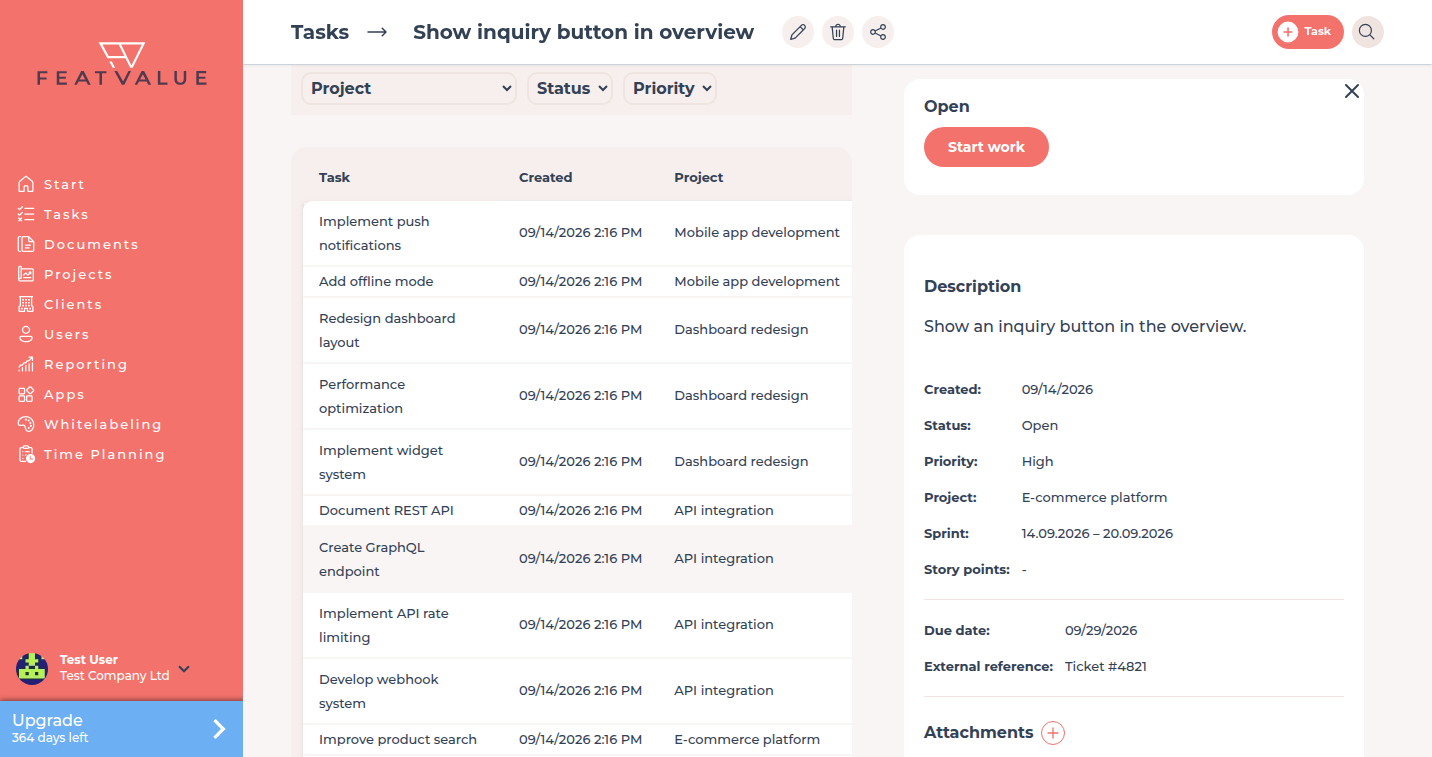
You create a task with + Task — the button sits in the header on every page, for example under Tasks or on the dashboard. The project owner company (usually the client) can always create and edit tasks; a service provider needs the matching rights on the project.
What it is for
A new task captures the brief and files in one place. Clients and your team then work on the same item instead of an e-mail thread.
List and statuses: Tasks overview. Extra fields on premium projects: Custom fields.
Where to find it
Click + Task in the header. On the dashboard you can also create tasks directly in a column.
You need at least one project you may write to. Without a project the form shows Create your first project — see Creating projects.
How it works
-
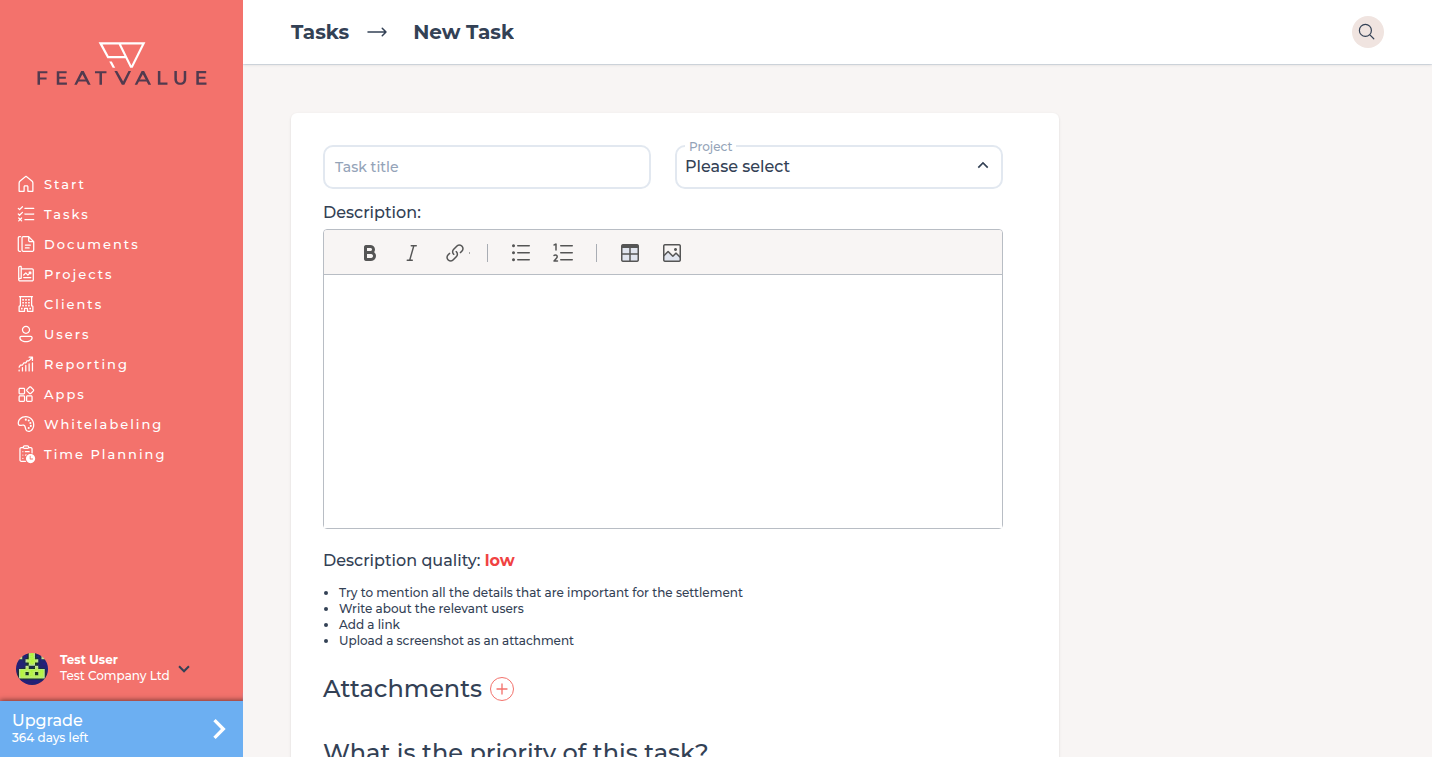
Fill the form
Enter a Task title and a Description. Add Attachments if the brief needs files. Set Priority to Highest, High, Medium, Low or Lowest. -
Save the task
Click Create task. The task starts in the first status of your workflow (often Open in the default workflow). -
Edit later
You can change the name only while the task is still in an early working status (for example Open or In progress). -
Reopen finished work
A reopen copies the old task. The new Task title starts with Reopened:.
Options
| Option | What it does |
|---|---|
| Task title | Name of the work. Editable in early working statuses. |
| Description | The brief. Use Add description when the field is still empty. |
| Attachments | Files on this task. See Attachments and PDF review. |
| Priority | Highest, High, Medium, Low, Lowest. |
Permissions
The project owner (usually the client) can always create and edit. A service provider needs Create tasks and Edit tasks on the project.
Cancel needs the project setting Tasks can be canceled. Cancel applies while the task is still open, in progress or already canceled. See Roles and access.
Troubleshooting
The plus control does nothing useful
You have no writable project. Create a project first, or ask the owner for Create tasks.
You cannot rename the task
The task is no longer in an early working status. Change the workflow step first, or leave the title as it is.
Your question has not been answered?
We will be happy to help you. You can send us an e-mail or arrange a video conference: