Custom fields
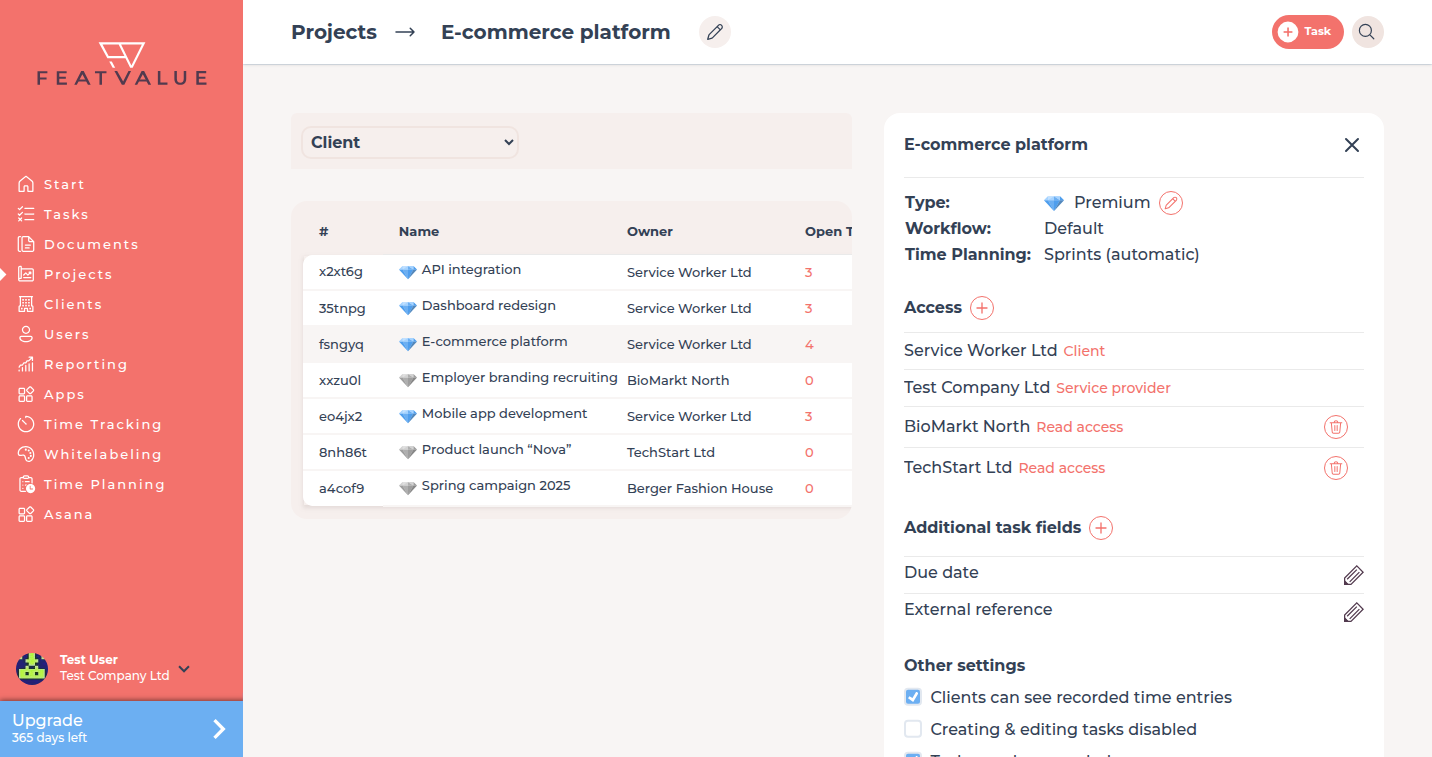
Extra task fields store additional data on every task of a premium project. Clients may see nothing, view the value or edit it.
What it is for
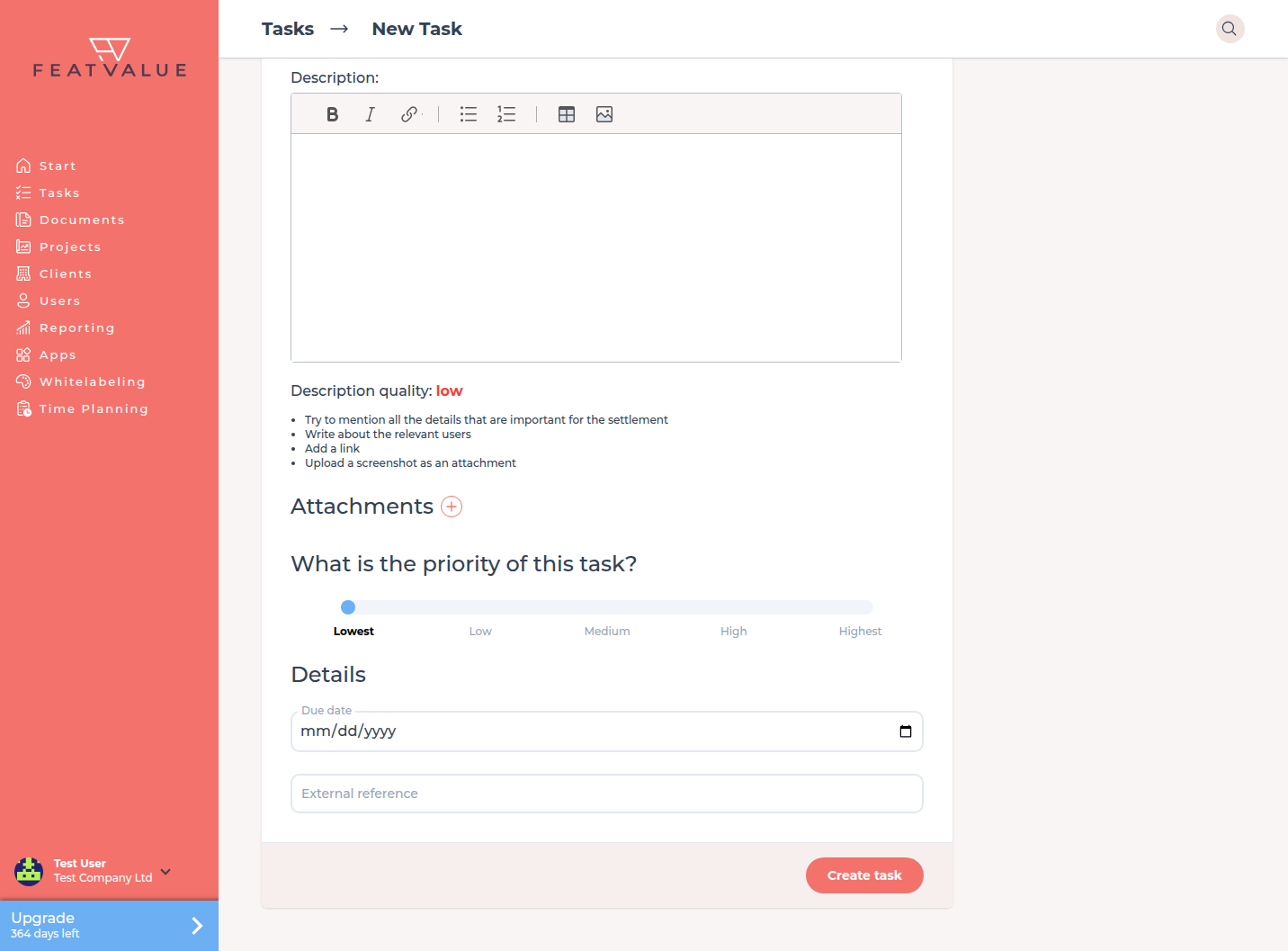
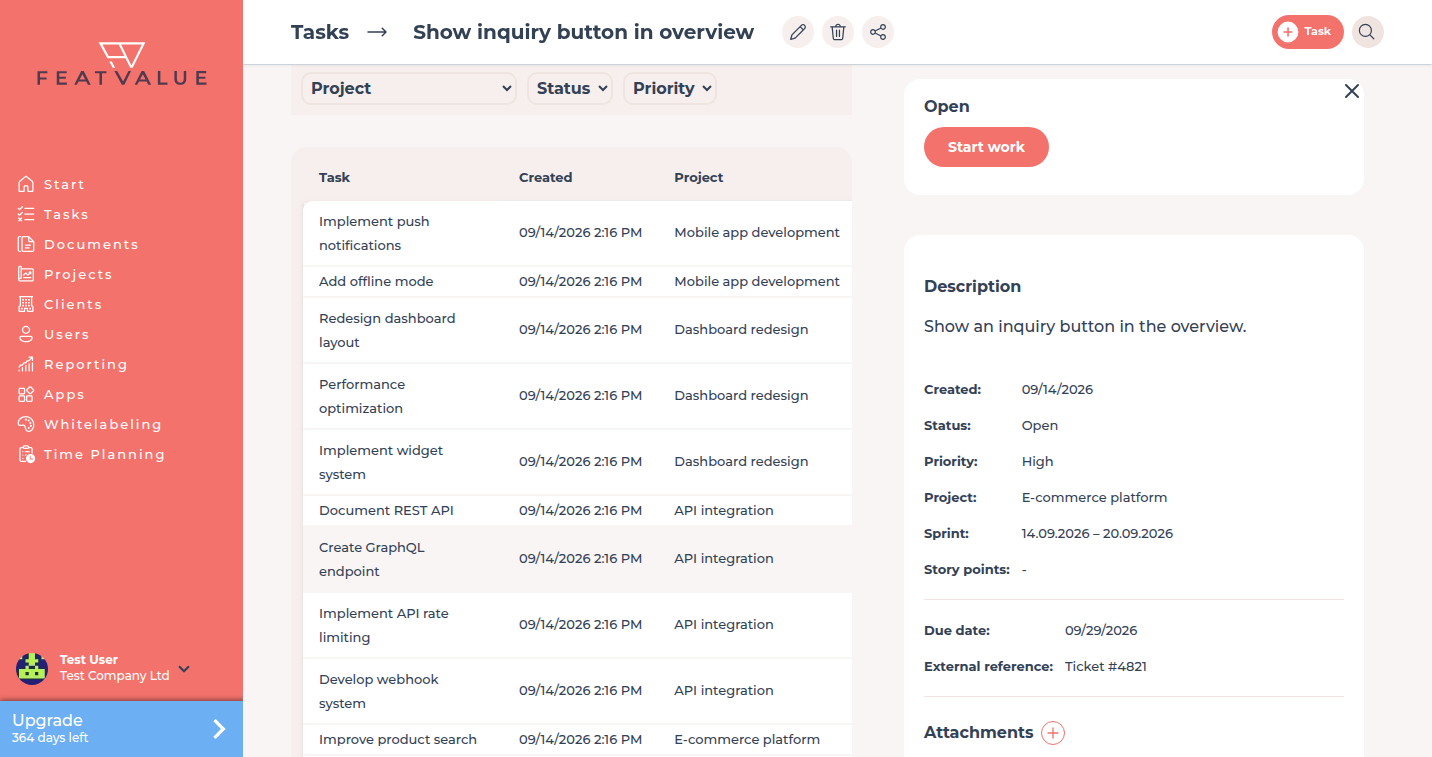
Use extra fields for a due date, a dropdown or a link that every task in the project should carry. They appear when creating a task and in the task details.
Creating tasks: Creating and editing tasks. Plans: Plans.
Where to find it
Open the project under Project settings. The block is called Additional task fields. The plus opens Add task field.
This block only works on a premium project. Premium
How it works
-
Add a field
Click the plus next to Additional task fields. Enter a Label and a Type. -
Choose a type
Available types are text, date, dropdown, due date, button and integration. In the form they are labeled Text field, Date field, Select field, Due date, Button (external URL) and Integration field. -
Set client rights
Under Clients may choose Nothing, View or Edit. -
Fill the field on the task
The field appears when you create or open a task in this project.
Options
| Type | Content |
|---|---|
| Text | A short string. |
| Date | A calendar date. |
| Dropdown | A value from a list. Each line in the list is an option. |
| Due date | A due date on the task. |
| Button | An external URL. The {token} placeholder becomes the task id. |
| Integration | A field from a connected app. |
Permissions
Only a premium project shows these fields. Premium Who manages the definition follows project access. See Roles and access.
Troubleshooting
You only see an upgrade notice
The project is not premium. Upgrade the project, or choose another premium project.
The client cannot change the value
Check Clients may. Nothing hides the field. View is read-only.
Your question has not been answered?
We will be happy to help you. You can send us an e-mail or arrange a video conference: