Project settings
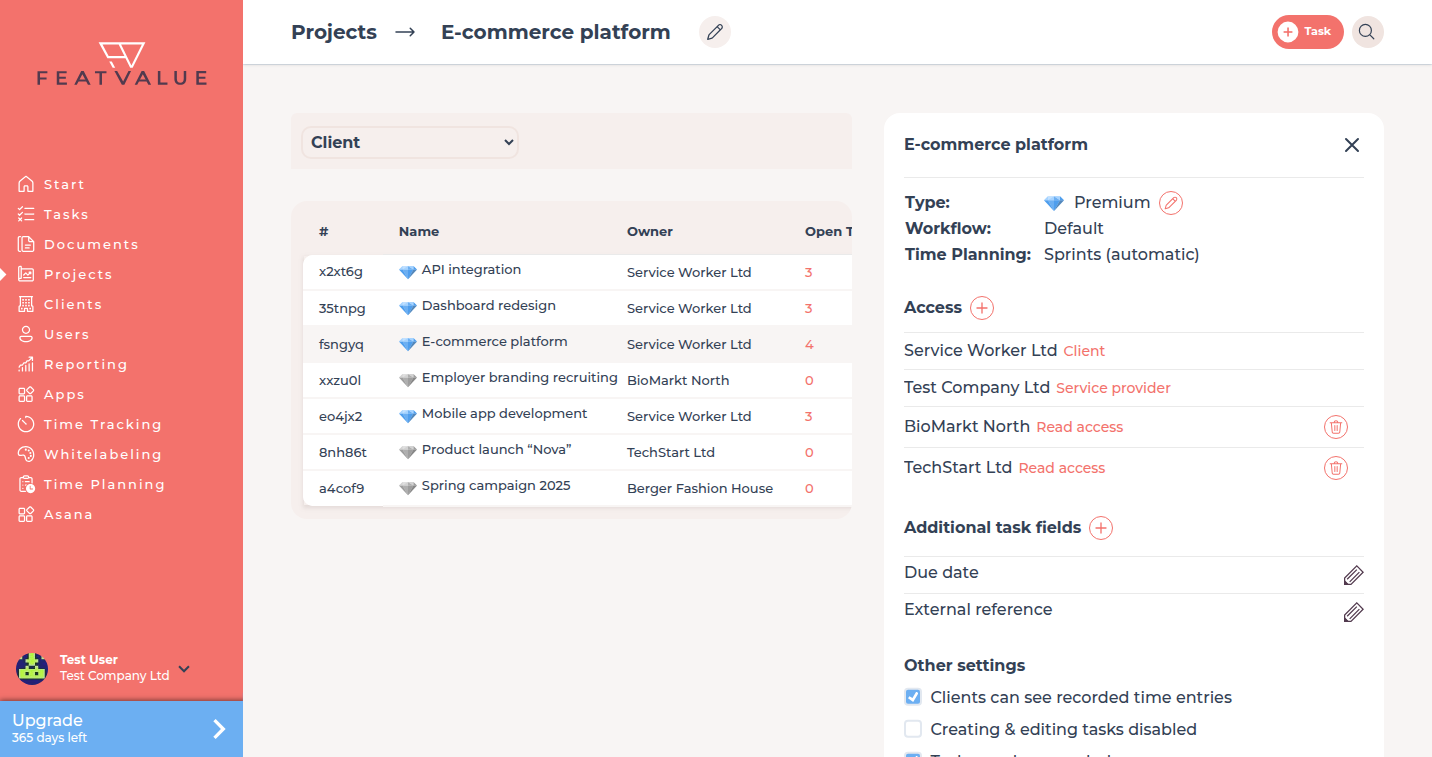
Project settings live in the project side panel under Other settings. They control what clients see, whether tasks may change, and how planning works.
What project settings are for
Use the side panel when one project should behave differently from the others. Typical cases are a read-only client view, hidden time entries, or a dedicated workflow.
Where to find it
Open a project from Projects. In the side panel open Other settings.
How it works
-
Open the project
Click the project in the Projects list so the side panel can load. -
Open Other settings
In the side panel find Other settings. Change only the options this project needs. -
Save and check the client view
Open the project as the client would, or ask a contact to confirm time entries, task editing and invites.
Options
| Option | What it does |
|---|---|
| Clients can see recorded time entries | Shows recorded time entries to the client. Details: Client visibility. |
| Creating & editing tasks disabled | Makes the project read-only for creating and editing tasks. |
| Tasks can be canceled | Allows tasks in this project to move to cancelled. |
| Trash | Decides whether the trash deletes a task or cancels it instead. |
| Own folder in Documents | Shows the project as its own tile under Documents. When the option is off, files and subfolders of this project appear directly in the company documents list. |
| Client may invite additional service providers | Lets the client invite further providers. Available on premium projects only. |
| Workflow | Opens the workflow this project uses. Premium projects can leave the default workflow. Create new workflows under Workflows. |
| Time planning mode | Sets how this project plans time. See Time planning. |
| Additional task fields | Extra fields on tasks of this project. They need a premium project. See Custom fields. |
Under Settings › Company › Project defaults you set the default settings for new projects. See Project defaults. Those are the same checkboxes, including Own folder in Documents. They apply to projects created afterwards. Change existing projects in that project's sidebar.
Permissions and plans
The owner changes these settings. Client may invite additional service providers, extra task fields and a non-default workflow need a premium project.
Troubleshooting
The client still sees time entries
Confirm Clients can see recorded time entries is off on this project, not only on another project.
The client cannot invite a provider
The project must be premium, and Client may invite additional service providers must be on.
Your question has not been answered?
We will be happy to help you. You can send us an e-mail or arrange a video conference: