Replanning
Replanning keeps re-distributing tasks across automatic sprints so the capacities and hour allowances you set are used well: each sprint is filled as far as the client’s workload allows, and important tasks move to the front. If work slips or finishes faster than planned, FeatValue shifts the rest of the plan so the schedule stays right. The run starts on its own, and you can keep or exclude single tasks from that plan.
What it is for
Use replanning when Sprints (automatic) should keep the board current without manual work. FeatValue spreads the open tasks across the sprints so every client stays within capacity, the agreed hour allowance gets used, and important tasks sit early. Estimates, priorities and new tasks are picked up on every run, so you never resort the board yourself.
That is especially true when work is delayed or finishes faster than planned: leftover tasks move forward, and hours that free up get filled again, so you always have a fitting schedule.
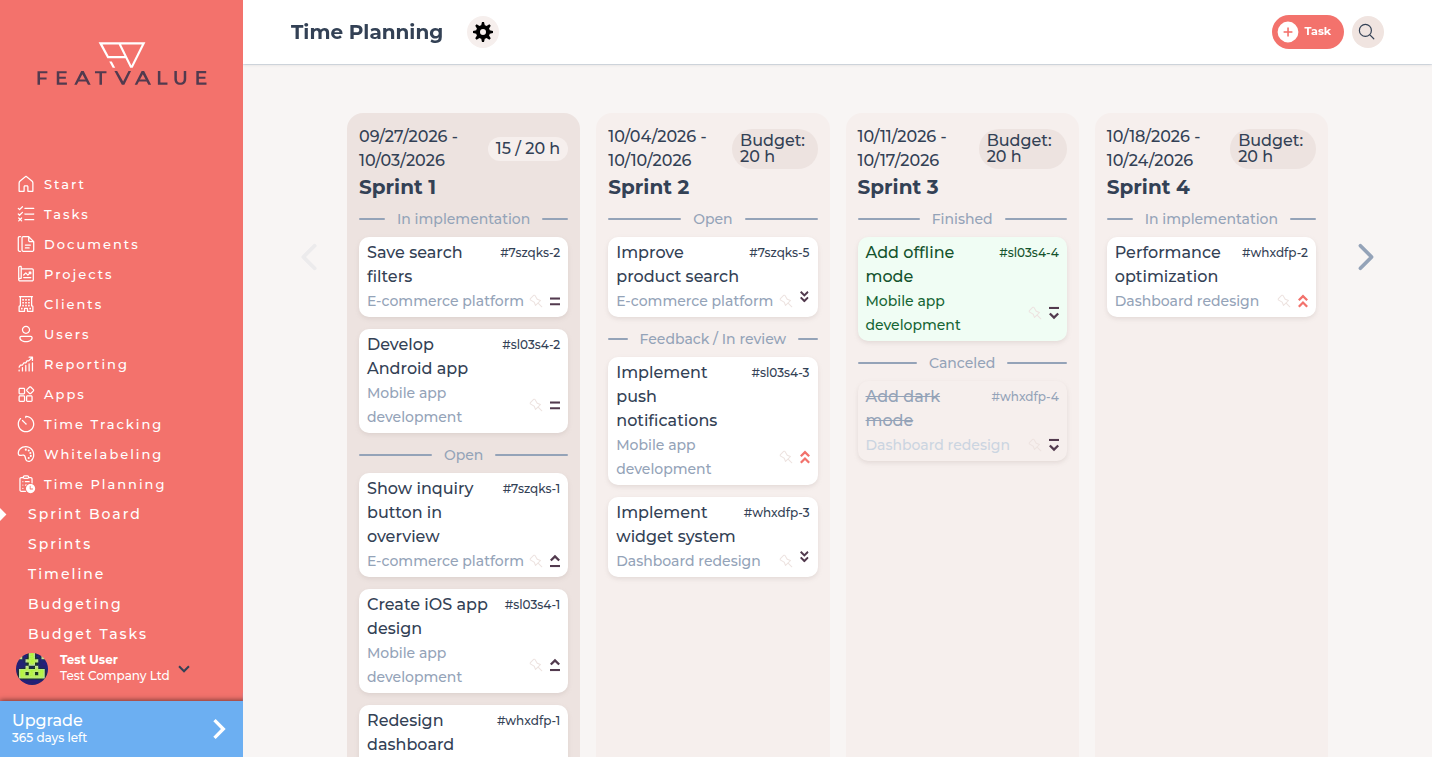
The board: Sprints. Hours per customer: Capacity planning.
Where to find it
Replanning runs in the background on automatic sprints, without a separate menu item. You see the result on the sprint board.
How it works
-
Let the schedule run
FeatValue replans automatic sprints about every three hours, based on the estimated hours per task, the client's capacity and the priority. Automatic planning needs time tracking so used time is known. See Time tracking. -
Fix a task in its sprint
On the board, use the pin. Fix this task in the sprint keeps the assignment. Remove fixation allows the next run to move it. -
Exclude a task
On the task, turn on Exclude from planning. The solver skips that task. -
Confirm the flash
After a successful run you see Tasks were successfully replanned.
How tasks end up in sprints
FeatValue does not work through the list from top to bottom. It looks for the best distribution across all open tasks and all visible sprints. Every task lands in exactly one sprint, and the estimated hours in a sprint may not exceed the client's capacity for that sprint.
- Capacity per client: Capacity planning sets the ceiling for each client and each sprint.
- Priority: Highest counts far more than High, Medium or Low — those tasks take the early sprints first.
- Status: Tasks already in review, accepted or with feedback move up.
- Early over late: With equal weight, FeatValue plans a task as early as capacity allows.
- Fixed and linked tasks: Fixed tasks stay in their sprint, linked tasks go into the same sprint.
- Stability: Most of the previous assignment survives, so the board does not look different after every run.
If nothing fits with all rules in place, FeatValue relaxes them step by step: stability first, then linking and fixation, and finally the capacity limit. Tasks whose estimate is larger than the biggest sprint capacity stay unplanned — as do excluded, finished and cancelled tasks.
Options
| Item | What it does |
|---|---|
| Automatic run | About every three hours for automatic sprints. |
| Fix this task in the sprint | Keeps the task in that sprint on the next run. |
| Exclude from planning | Leaves the task out of the automatic plan. |
Permissions and plans
Automatic replanning needs a premium user, a premium project and Sprints (automatic).
Troubleshooting
A task keeps leaving its sprint
The task is not fixed and not excluded. Pin it or turn on Exclude from planning.
Nothing is replanned
The project is not on automatic sprints, time tracking is missing, or capacity is unset. Check the mode and capacity.
Your question has not been answered?
We will be happy to help you. You can send us an e-mail or arrange a video conference: