Status mapping
Status mapping has two jobs in FeatValue: match your portal statuses to a connected project tool, and convert tasks when a project changes workflow.
What status mapping is for
Agencies usually keep work in a project-management tool and show a simpler set of statuses in FeatValue. Mapping tells FeatValue which tool status belongs to which FeatValue status, so imported tasks land in the right step. That lets you hide internal steps, such as an internal QA that clients should not see.
- Map tool statuses to FeatValue statuses when you connect or import
- Hide internal steps, such as an internal QA
- Convert existing tasks when you assign another workflow to a project
Where to find it
Tool mapping happens when you connect an app, not under Settings › Company › Workflows. Start under Apps and follow the connect or import flow. See Connecting apps.
Workflow conversion happens on the project: open the project, change Workflow, and save. Service providers on a premium project can also choose Switch workflow on a task.
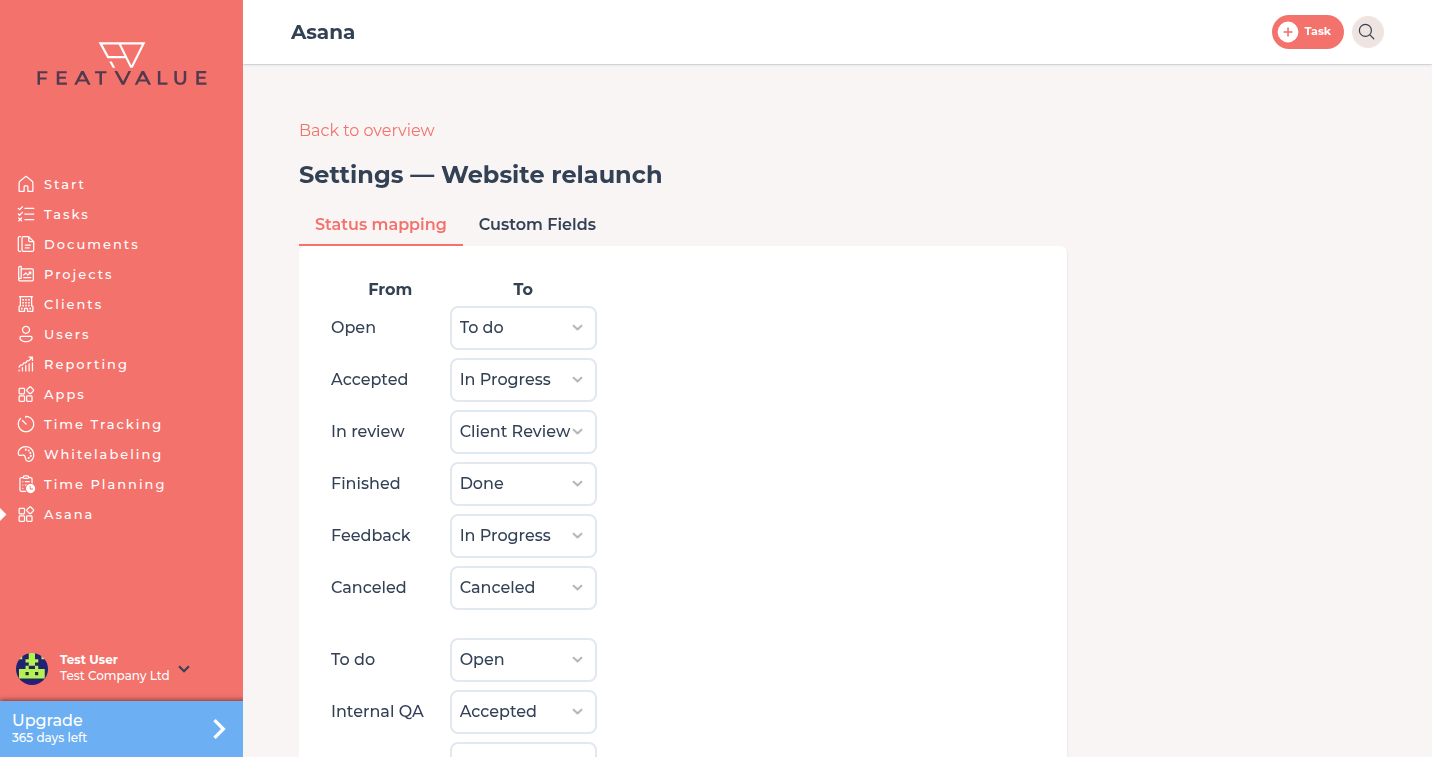
How it works
Map statuses to a connected tool
During connect or import, FeatValue lists statuses from the tool next to FeatValue statuses. You pick the matching value for each tool status, then save. New and updated tasks follow that map. The FeatValue side uses the workflow on the project; see Status.
Convert between workflows
When a project’s Workflow changes, FeatValue converts open tasks to values on the new type. Use this when you cloned the default workflow and then assigned the copy to a project. Details of the project field: Project settings.
Permissions and plans
Connecting apps is available on every plan. Individual workflows and switching a project to a custom workflow need a paid plan and a premium project. See Workflows overview and Plans.
Troubleshooting
Imported tasks sit in the wrong status
Open the connect or import mapping again and check each tool status against the FeatValue value. Then re-import or wait for the next sync.
A task cannot switch workflow
Switch workflow is for service providers on a premium project when another workflow is available. Clients do not see that action.
Your question has not been answered?
We will be happy to help you. You can send us an e-mail or arrange a video conference: