Outlook add-in
The Outlook add-in shows the FeatValue pane next to an open email. From there you create a task in the client’s project or attach the email as a comment to an open task—without leaving Outlook.
What the add-in is for
Clients often send requests, feedback and approvals by email. With the add-in you take such an email straight into FeatValue:
- create a new task with the email’s subject, text and attachments
- create a new client with a project for an unknown sender
- attach the email as a comment to an open task and set its status
- find the linked task again in later replies of the conversation
The Outlook page gives an overview with examples.
Requirements
- a FeatValue account of your agency with at least one client and project (see Creating projects)
- Outlook on the web, new Outlook for Windows or classic Outlook for Windows
- the FeatValue add-in from the Microsoft Marketplace, added via Apps in Outlook. If your organization blocks custom add-ins, an administrator deploys it in the Microsoft 365 admin center.
Where to find it
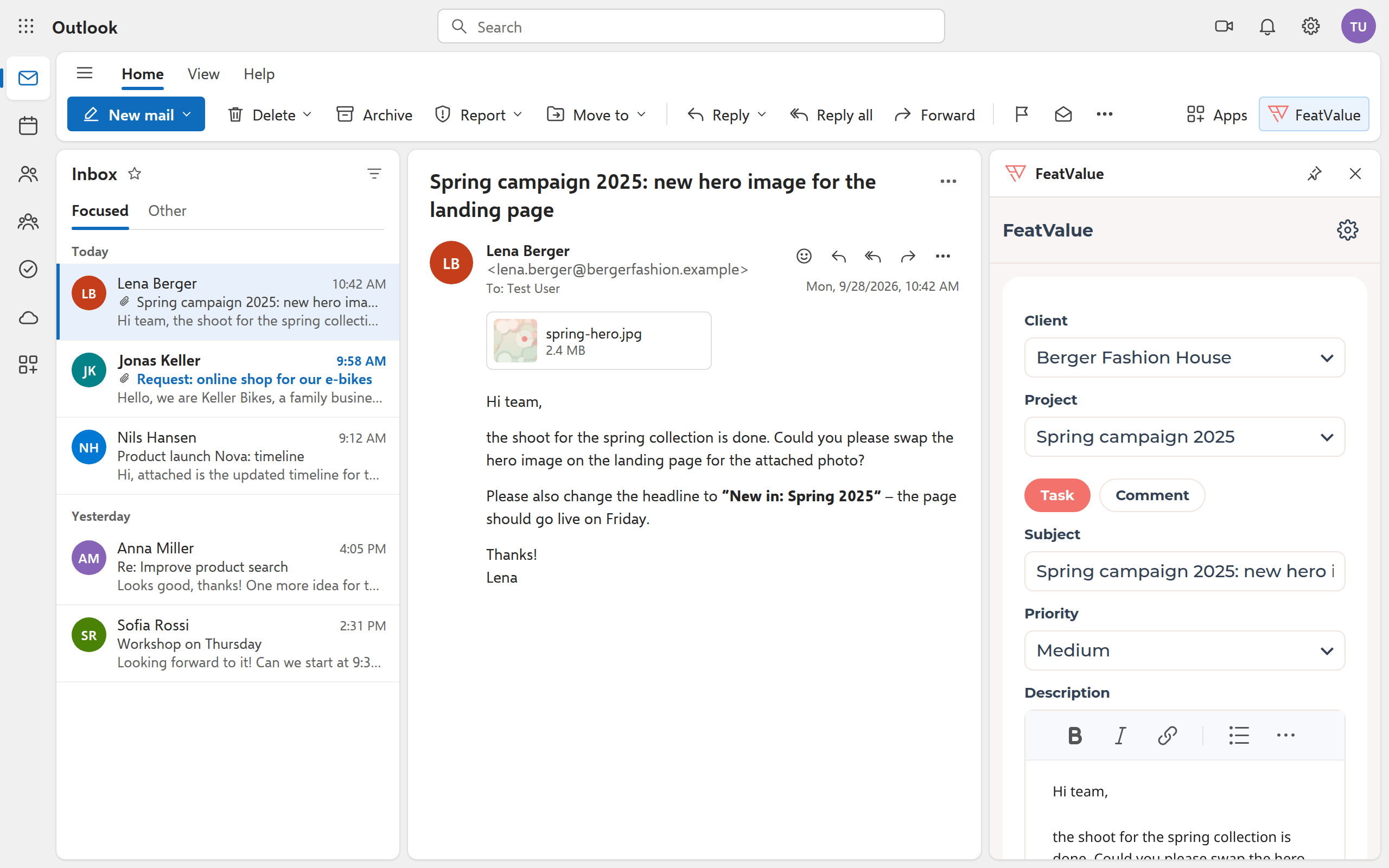
Open an email in the reading pane and click FeatValue in the ribbon. The pane opens to the right of the email. The button is not available while you compose a new message.
How it works
-
Connect FeatValue
The first time, the pane shows Connect FeatValue. Sign in with your FeatValue account and confirm App access with Grant access. The add-in stores the connection in your mailbox. -
Check client and project
The add-in compares the sender and recipients of the email with your clients’ contacts and with saved assignments. If there is no match, it shows No client recognized. Then select the client and keep Remember assignment checked so the address is recognized next time. As Project, the add-in suggests one whose name appears in the subject or text. -
Create the task
Subject and Description are pre-filled from the email; the description contains the latest message of the conversation. Adjust the Priority, select under Attachments the files that belong to the task, and click Submit. -
Create a new client
If someone writes for the first time, choose New client. Name, email and contact are pre-filled from the email. On Submit, the client, a project with its name and the task in it are created. The contact receives an invitation as the client’s contact. -
Comment instead of a task
If the project has open tasks, switch to Comment. Choose the Task, a new Status if needed, and click Send comment. Only statuses the task may move to according to the workflow are offered.
Tasks in the email conversation
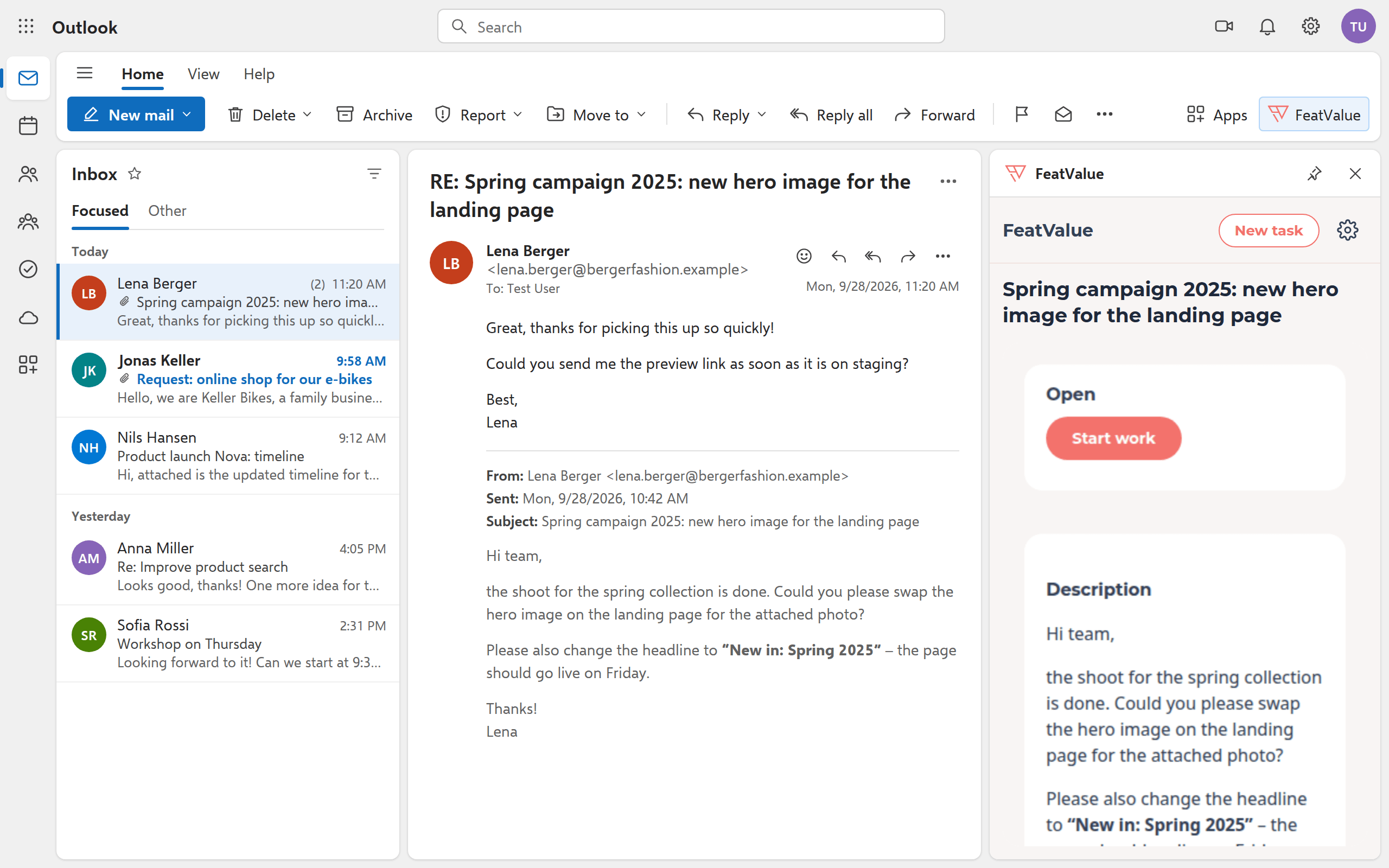
FeatValue links every task and comment to the email and its conversation. When you open the same email or a reply to it, the pane shows the linked task with its status and description right away. New task creates another one from the same conversation.
Options
| Field or button | What it does |
|---|---|
| Client | Client whose project gets the task. New client creates client and project. |
| Remember assignment | Saves the sender address for this client. The assignment only applies to your agency. |
| Project | The client’s project that receives the task or comment |
| Task / Comment | Create a new task or attach the email to an open task |
| Priority | Lowest to Highest, Medium is preselected |
| Attachments | Files of the email that are attached to the task. Images in the text are kept in the description. |
| Status | Comment only: next status of the task, Unchanged keeps it |
| Settings → Log out | Disconnects the add-in from your FeatValue account (gear icon at the top of the pane) |
How tasks and comments continue in FeatValue is covered in Creating and editing tasks and Comments, mentions and questions.
Permissions and plans
The add-in works with your FeatValue account. You only see clients and projects your agency has access to; the add-in creates tasks and comments with your account. Like all integrations under Apps, the add-in is included in every plan.
Troubleshooting
The FeatValue button is missing in the ribbon
The button only appears on an open email, not while writing. If the add-in has not been added yet, search for FeatValue under Apps. If you cannot add add-ins at all, your organization enables them in the Microsoft 365 admin center.
The client is not recognized
The sender address does not belong to a contact of any client. Select the client and keep Remember assignment checked, or invite the person as a contact (see Inviting contacts).
My input is gone
When you switch to another email in the reading pane, the pane discards input you have not submitted yet. Create the task before you open the next email.
Your question has not been answered?
We will be happy to help you. You can send us an e-mail or arrange a video conference: