
FeatValue Outlook

Outlook add-in for agencies Turn client emails into tasks—right in Outlook

Client requests belong in the portal, not in the inbox. If a client emails you anyway, the FeatValue add-in turns the email into a task in your client portal in just a few clicks—with client, project, text, and attachments. From then on, status updates, questions, and approvals happen in the portal instead of long email threads.

Start free. No credit card. Set up in minutes.

FeatValue: your client portal—every request lands as a task in the right project

Outlook: your inbox—you create tasks without leaving the email
Outlook – FeatValue
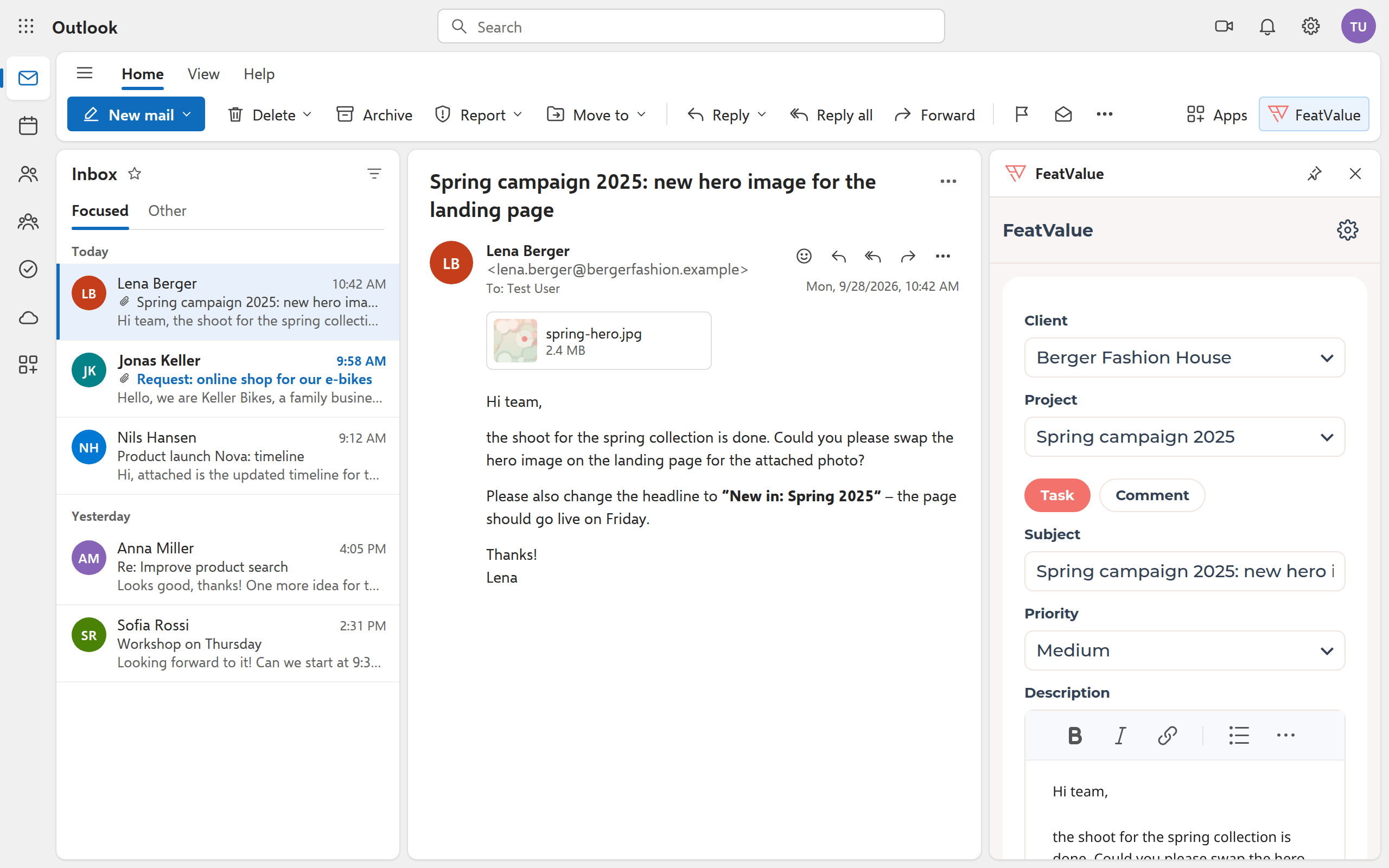
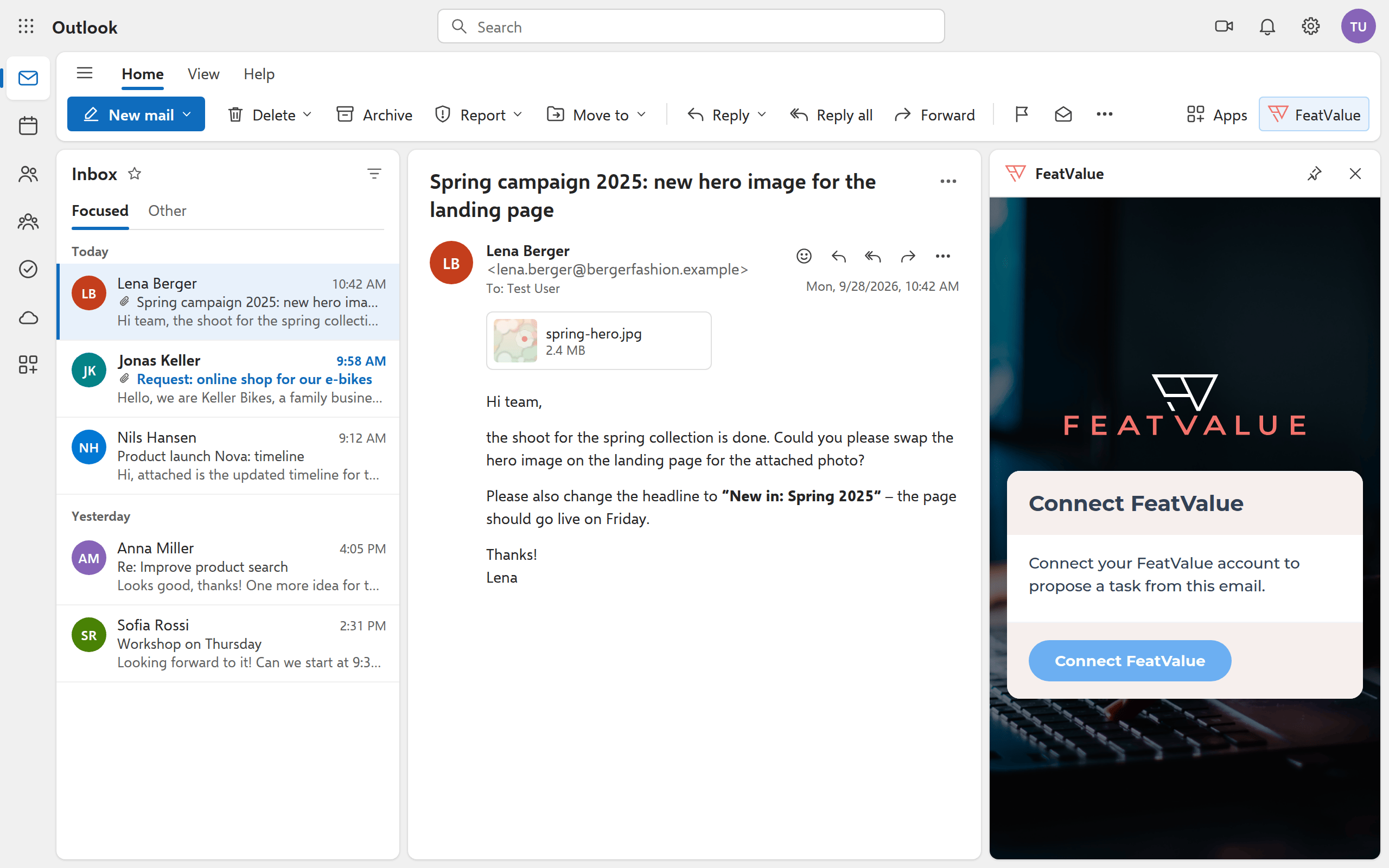
The FeatValue pane next to an email in Outlook, with the recognized client, the suggested project and the description taken from the email

Email to task

Open a request, create the task—no copy and paste

Open an email and click FeatValue in the ribbon. The pane recognizes the client by the sender address, suggests the matching project, and takes over the subject, text, and attachments. You check priority and description—and with Submit the task is in the client portal.

New clients

A new inquiry? Create the client and project on the spot

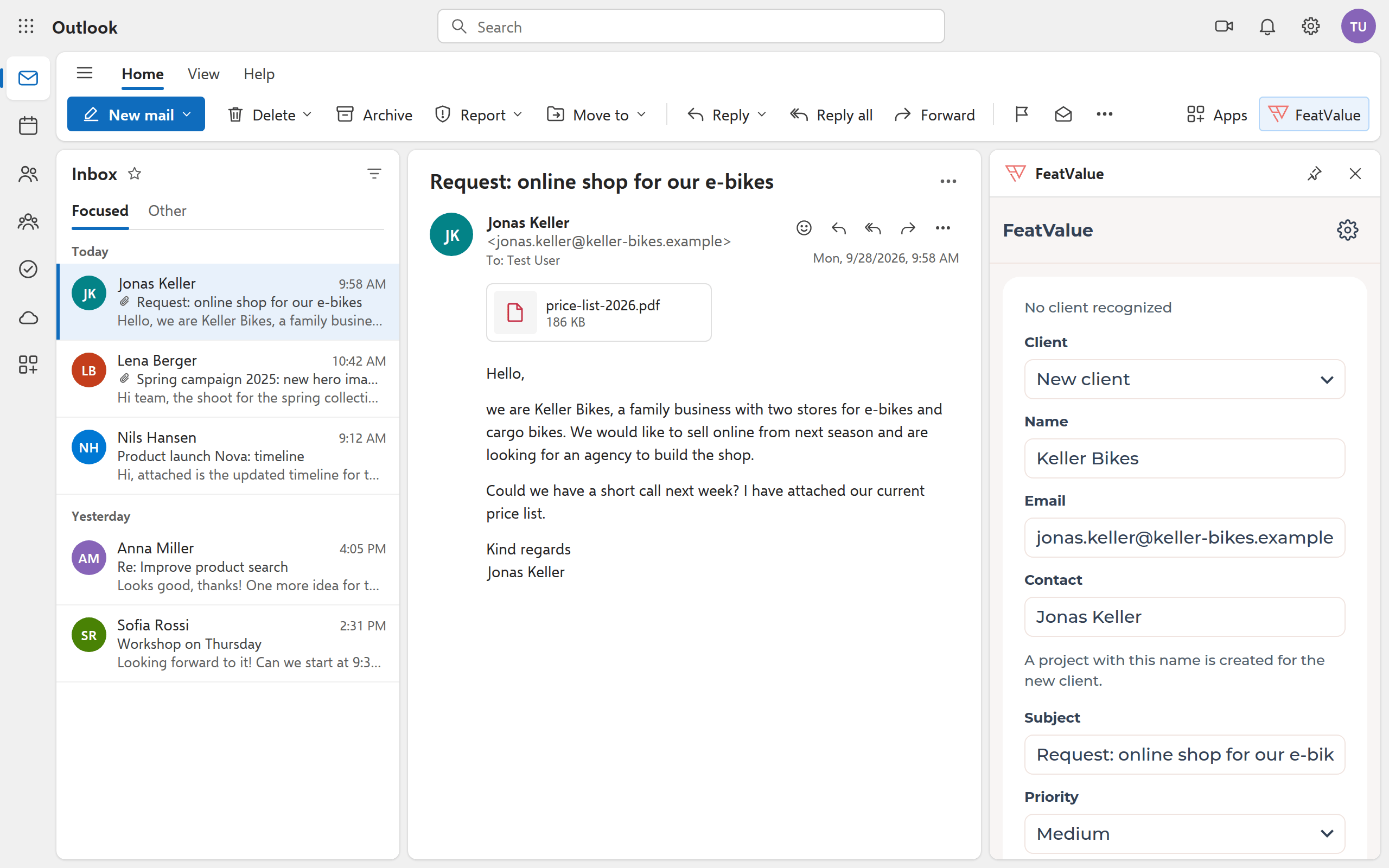
When someone writes to you for the first time, FeatValue pre-fills the company name, email address, and contact person from the email. On submit, the client and a project are created—with the inquiry as their first task. If another contact of an existing client writes, you assign the address once; FeatValue remembers it.

Inquiry from an unknown sender: the pane suggests a new client with name, email and contact person
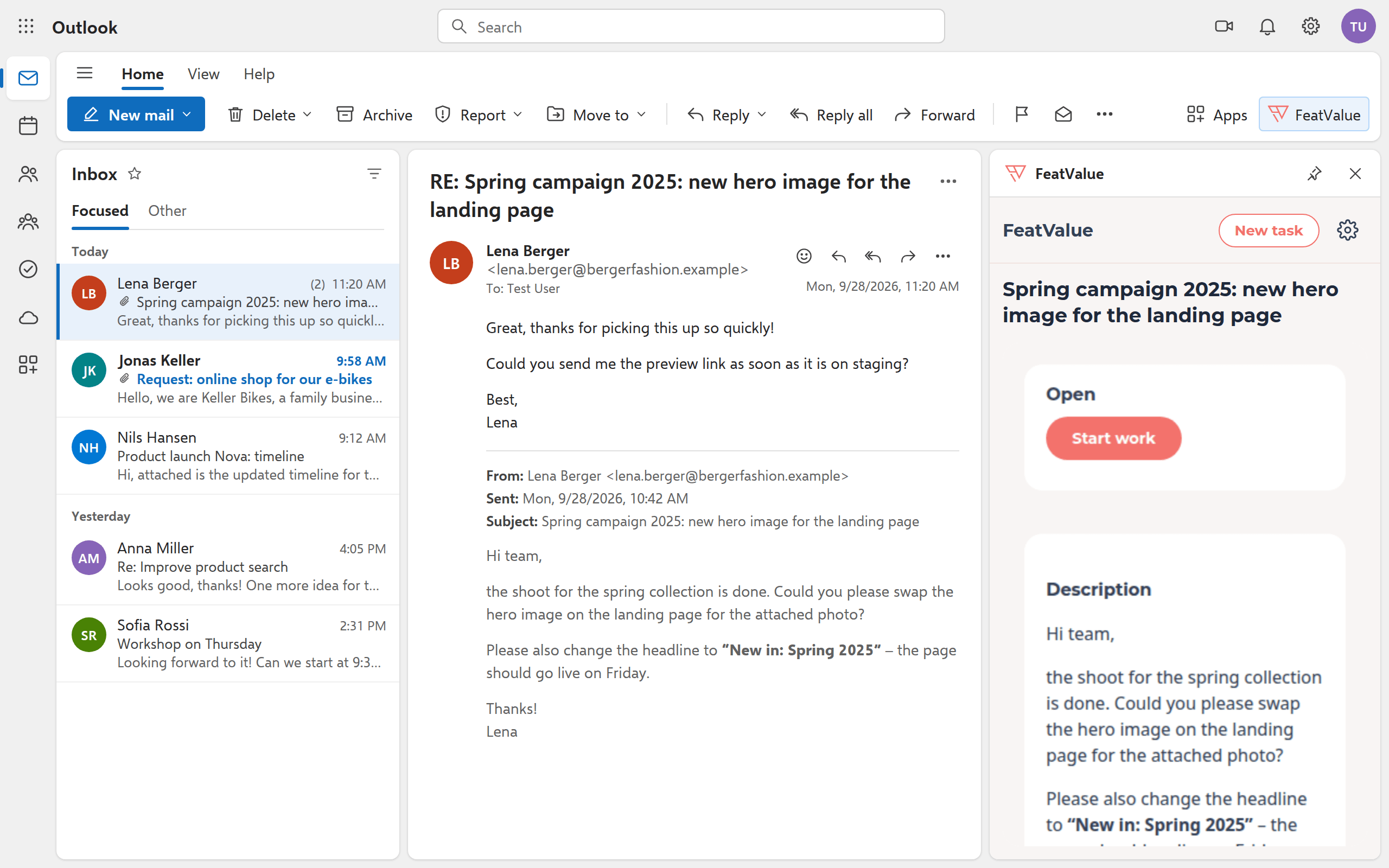
Reply in the email conversation; next to it, the pane shows the linked FeatValue task with its status

Conversation

Every reply shows the matching task

FeatValue links the task to the email conversation. When you open a reply later, the pane shows the task with its status and description right away—you see where the request stands without searching. New task creates another one from the same conversation.

Comments

Feedback by email? Add it as a comment to the right task

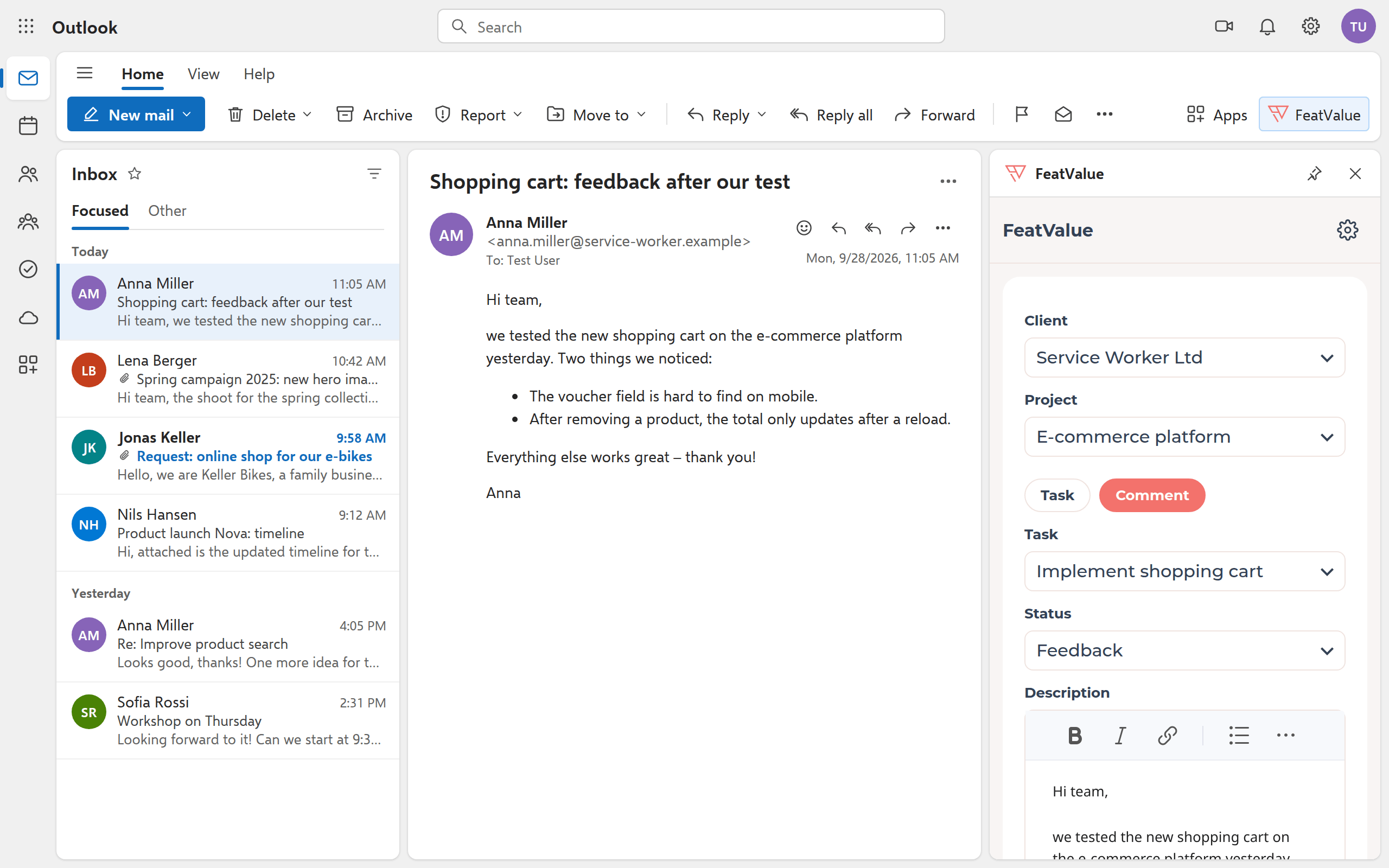
Not every email is a new task. Under Comment you attach the message to an open task of the project and set the next status right away if needed—for example Feedback when the client asks for changes after a review.

The pane in comment mode with the selected task and the new status Feedback
Outlook menu in FeatValue

Without switching tools

Connect once, available in every email

The first time you click FeatValue, you sign in with your FeatValue account and grant access. The add-in remembers the connection in your mailbox; you can sign out at any time via the gear icon in the pane.

Set up in minutes

How to connect Outlook with FeatValue

1

Sign up for free

Create your FeatValue account above and set up your clients and projects—or bring them over from your project management tool.

2

Add the add-in

In Outlook, search for “FeatValue” under Apps, or get the add-in from the Microsoft Marketplace. It runs in Outlook on the web as well as in new and classic Outlook for Windows.

3

Open an email & connect

Open an email, click FeatValue in the ribbon, and sign in once with your FeatValue account. From then on, the pane suggests a task for every email.

Stefan Wienströer

Free setup

We connect Outlook for you – for free

No time for the setup? We connect Outlook, design your portal and set up your workflows. Free of charge, for every plan.

Book a free call More about the free setup

Start now with FeatValue and Outlook

Try it for free, add the add-in, and turn your next client request into a task right from Outlook.

No credit card required. Cancel anytime.

Microsoft and Outlook are trademarks of the Microsoft group of companies. FeatValue is an independent offering and is not endorsed or sponsored by Microsoft. The add-in requires a FeatValue account (free plan available).

+49 251 590 644-60
hello@featvalue.com
Privacy Policy • Imprint • Terms and Conditions