Overview
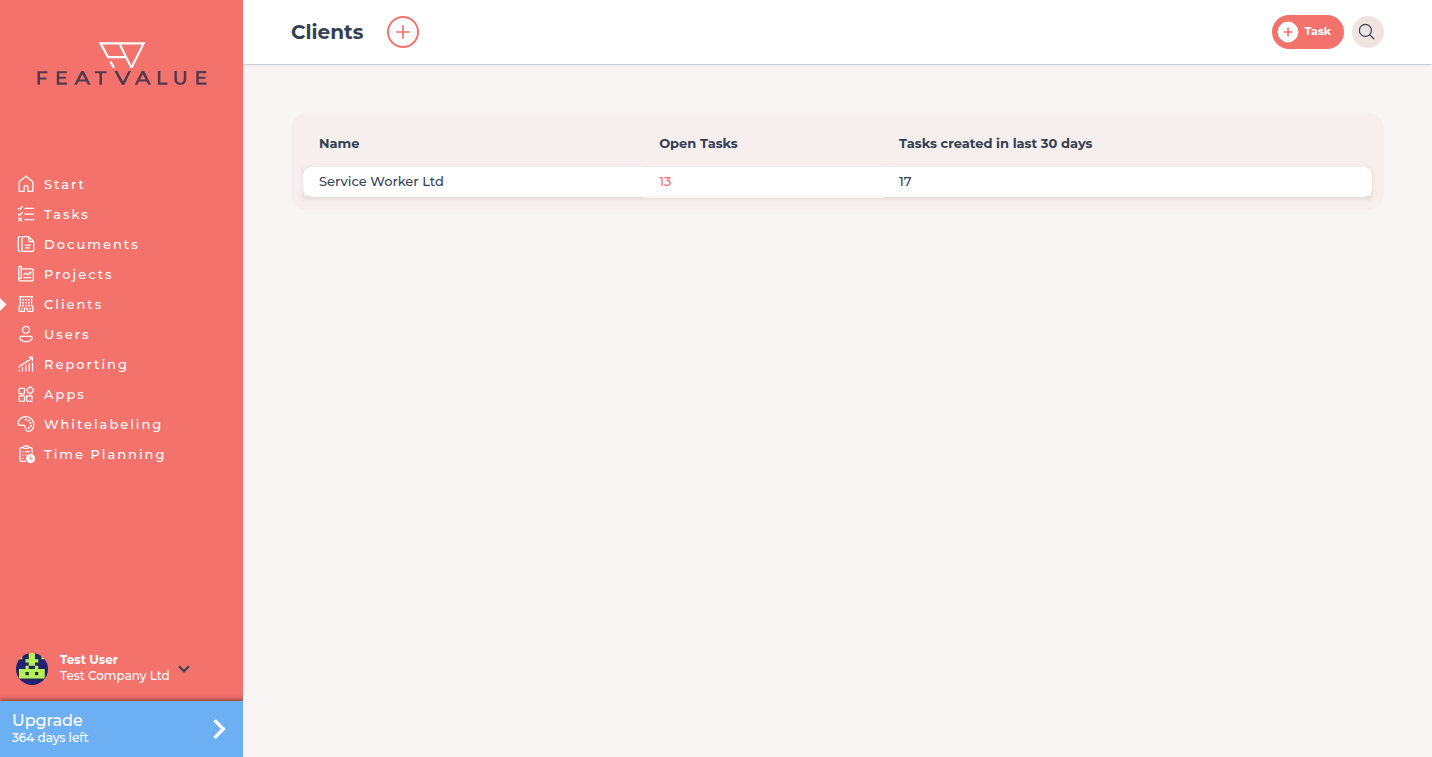
Each client is a company linked to your agency; its team members are the users of that company.
What clients are for
From the Clients list you create the company, invite people and open the adapted client interface they use in the FeatValue client portal.
- Team members of that company who sign in to the portal
- A starting point for projects, portal access and weekly summaries
Where to find it
Click Clients in the left sidebar. The plus action is Create client.
How it works
-
Open the list
Clients lists the companies you serve. Open a row to see team members and the link to that company. -
Create a client
Click Create client. Enter the company name. Optionally enable Create default project and add people under Client Portal Access (name and e-mail). -
Invite an existing person
Open the client in the list. Next to Users, click plus when you only need to bring another person in.
How team members sign in is in Portal access. Extra people later: Inviting contacts.
Client and team members
| Term | Meaning |
|---|---|
| Client | A company linked to your agency as a customer |
| Team members | People of that company with portal access |
Client users sign in to FeatValue and see the adapted client interface. You can also embed the portal on your website with the WordPress plugin.
Permissions and plans
All plans include unlimited clients. Complete setup has the item Invite client; it closes when at least one client company has a user.
Troubleshooting
The new company has no project
Enable Create default project when you create the client, or create a project under Creating projects.
Your question has not been answered?
We will be happy to help you. You can send us an e-mail or arrange a video conference: