Client fields
Client fields are extra fields you define for client companies. You store the values on each client and reuse them in custom menu items.
What client fields are for
Use them for data that every client should carry, such as an account number or a portal note. The values stay on the client, not on a single project.
Where to find it
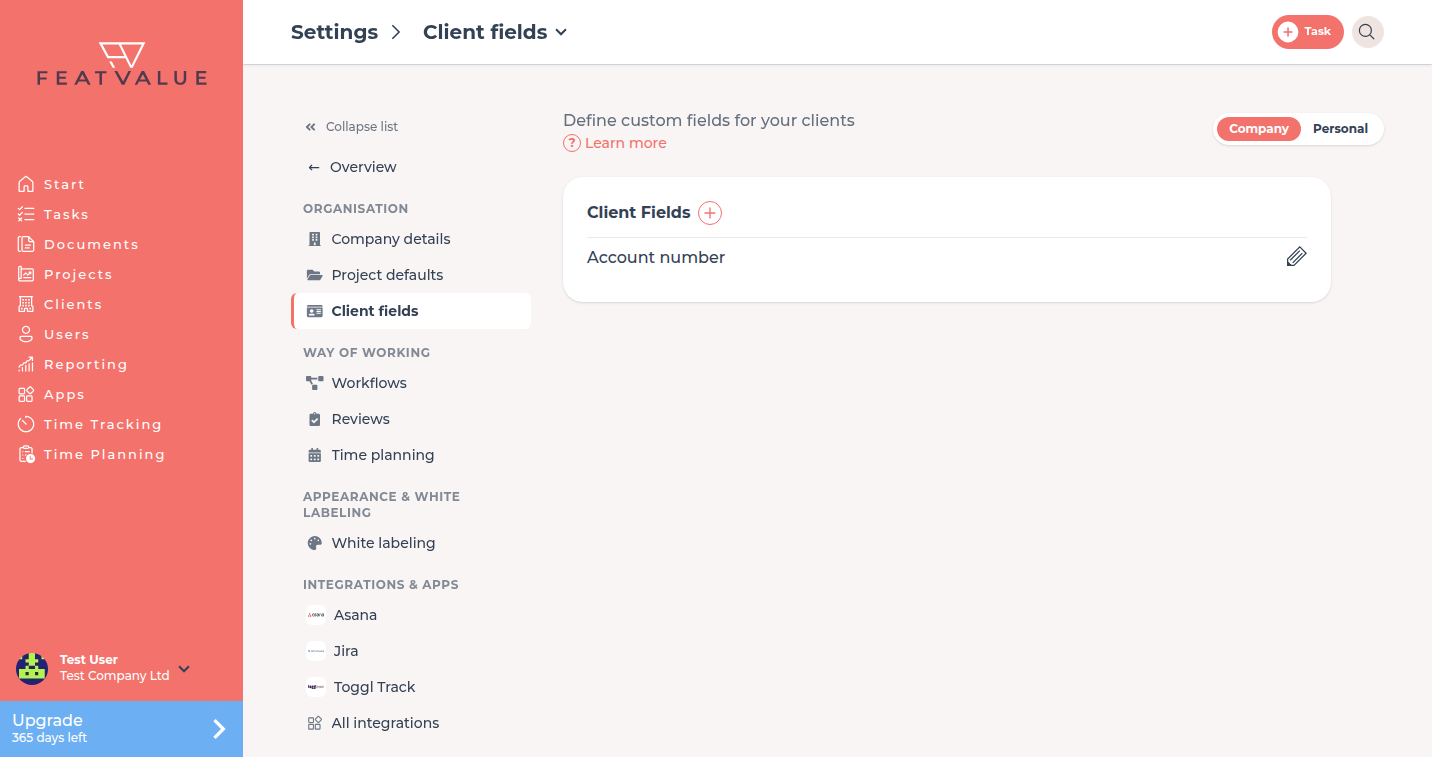
Open Settings › Company › Client fields. The tile sits in the Organisation group and appears once your company has clients. The page is a Pro option.
How it works
-
Define the fields
Under Settings › Company › Client fields add the fields your agency needs. -
Fill values on the client
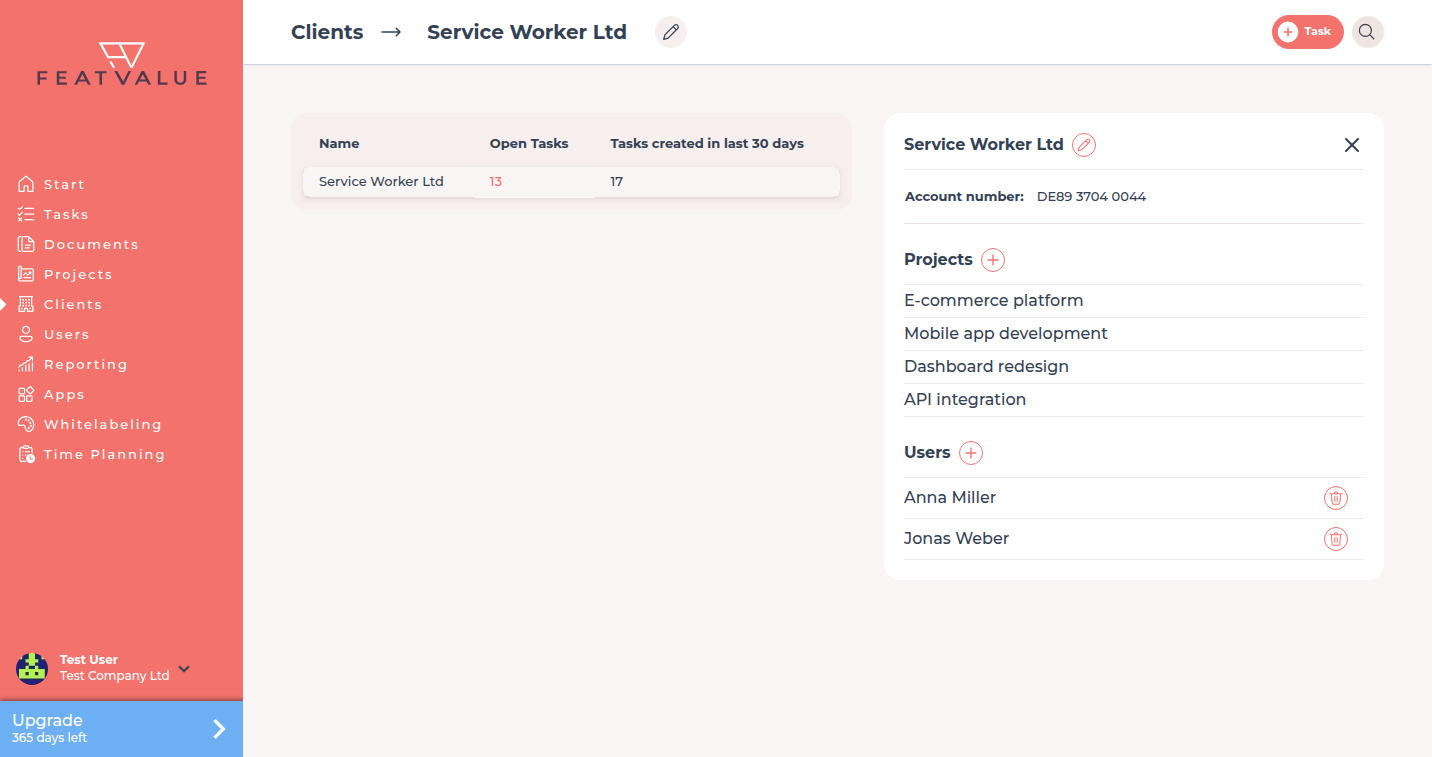
Open the client under Clients and enter the value for each field. -
Use a placeholder in a custom menu item
In a custom menu item insert{client:field_name}. FeatValue replaces it with the value of that field on the current client. See Menus and custom items.
Placeholder
| Pattern | Replaced with |
|---|---|
{client:field_name} |
The value of that client field on the current client |
Replace field_name with the name of the field you created. The placeholder only resolves when a client is in context.
Permissions and plans
Client Fields needs Pro (Pro or Enterprise). Other plans do not get this settings page. Plan details: Plans.
ProTroubleshooting
The settings page is missing
Your company is not on Pro or Enterprise. Upgrade the plan first.
The menu item shows the raw placeholder
Check the field name in {client:field_name}. Open the client and confirm the field has a value.
Your question has not been answered?
We will be happy to help you. You can send us an e-mail or arrange a video conference: