Personal menu
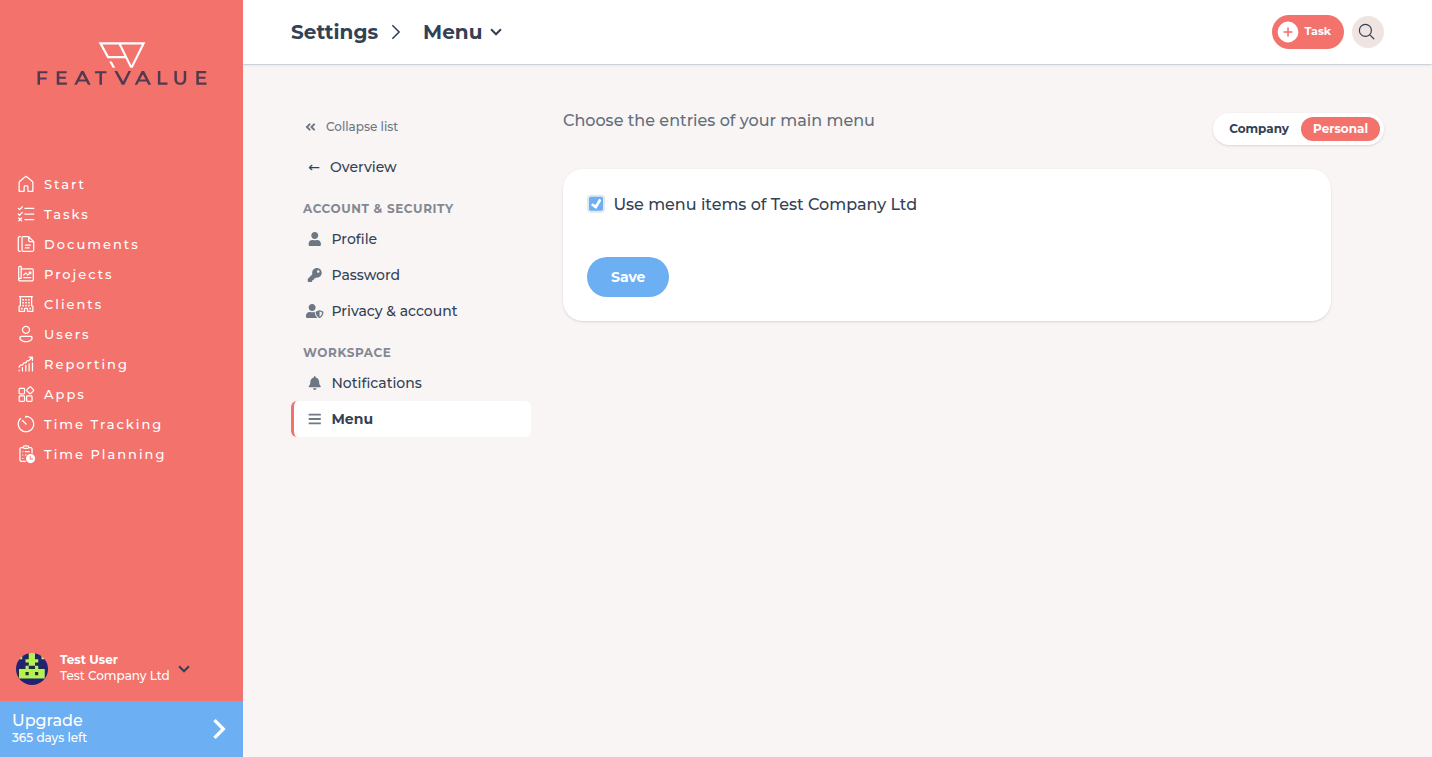
Under Settings › Personal › Menu you decide which entries your own main menu shows. The choice applies only to you.
What the personal menu is for
In a white-labeled portal, the company that owns the theme decides which menu entries are visible. With the personal menu you hide entries you do not need or add others.
Where to find it
Open Settings › Personal and click Menu in the Workspace group.
How it works
-
Open Menu
Open Settings › Personal › Menu. -
Keep the company menu or pick your own
With Use menu items of … ticked, you see the menu of the company that owns the theme. Untick it to see the list of all entries you may use. -
Tick entries
Tick the entries your menu should show. -
Save
Click Save. The menu in the sidebar updates.
Permissions and plans
The Menu tile appears only when a white-label theme is active. The theme decides whether you may untick the checkbox. If it is greyed out, everyone uses the company menu. Entries you lack rights or the plan for are not in the list.
Troubleshooting
The Menu tile is missing
No white-label theme is active for your account. FeatValue then shows the standard menu.
I cannot untick the checkbox
The theme does not allow a personal menu. Contact the company that owns the portal.
An entry is missing from the list
You lack the rights or the plan for that area. White labeling itself is not in the main menu but under Settings.
Your question has not been answered?
We will be happy to help you. You can send us an e-mail or arrange a video conference: