Logo and colors
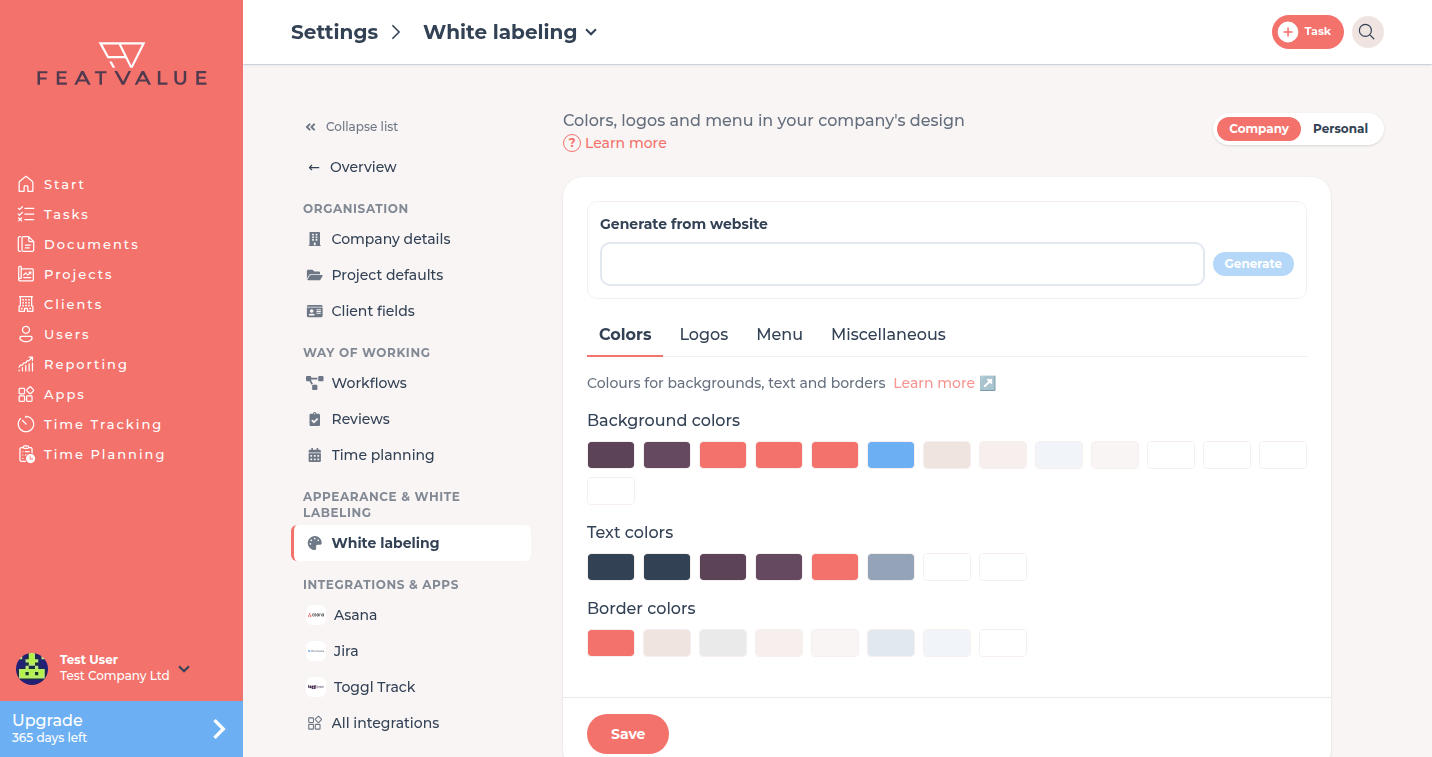
The Colors and Logos tabs set the look of FeatValue for your theme. Upload files and pick background, text and border colors.
What logo and colors are for
Clients see your logo in the sidebar and in the browser tab. Colors apply across the app, including buttons and surfaces.
Where to find it
Open Settings › Company › White labeling. Use the Colors and Logos tabs. See Whitelabeling.
How it works
-
Set colors
On Colors pick swatches under Background colors, Text colors and Border colors. Click Reset to restore the FeatValue palette. -
Upload logos
On Logos upload Logo (PNG or JPEG), Icon for the mobile logo, and Favicon (PNG, JPEG, SVG or ICO). -
Save
Click Save at the bottom of the page.
To pull colors and logos from a site, use Generate a theme from a website.
Options
| Control | What it does |
|---|---|
| Background colors | Surfaces and panels |
| Text colors | Headings, body text and accents |
| Border colors | Lines and outlines |
| Reset | Restores FeatValue default colors. Shown when colors differ |
| Logo | Logo in the sidebar |
| Icon | Mobile logo in the small header |
| Favicon | Browser tab icon |
Change colors in the preview
Above the color palettes you see a small preview of FeatValue. Hover over it to see which color is used where. Click an area, for example the sidebar, a button or the progress bar, to change exactly that color.
Fonts
On Fonts choose a font for each area: Body text, Headings and Controls (buttons, navigation). The preview next to it shows the result right away. Reset to default restores the FeatValue default (Montserrat).
- Font sizes stay the same, so all views remain easy to read.
- FeatValue serves Google Fonts itself. Your clients do not load any files from Google.
- If your website uses a licensed font, a freely available alternative is suggested.
Upload your own font
If you use your own brand font, upload it on Fonts under Upload your own font. WOFF2 and WOFF files up to 2 MB are allowed, with up to 10 fonts per company.
-
Enter a name and choose a file
Enter a name in Font name and choose a .woff2 or .woff file in Font file. -
Confirm the license
Tick “I confirm that I hold the license to embed this font on the web and that I am liable for it.” Only then is Upload enabled. -
Upload and select the font
Click Upload. The font then appears at the top of the list for every area, in the group Custom fonts. The preview shows it right away. -
Save
Click Save. The tab you opened last stays open afterwards.
- Each file holds one style. The browser generates bold and italic from it.
- The font applies across the whole app and on embedded pages.
- If your font is a TTF or OTF file, convert it to WOFF2 first, for example with a font converter.
- You need a license that allows embedding the font on websites.
- Delete removes a custom font. Areas that use it switch back to Default (Montserrat).
Permissions and plans
Same as all of white labeling: Starter or higher. Starter See Whitelabeling.
Troubleshooting
Reset is missing
Colors already match the FeatValue default. Change a swatch first.
The mobile header still shows FeatValue
Upload Icon on Logos, then click Save.
“Upload” cannot be clicked
Fill in Font name and Font file and confirm the license.
No further font can be uploaded
Each company can upload up to 10 custom fonts. Delete an existing font first.
Your question has not been answered?
We will be happy to help you. You can send us an e-mail or arrange a video conference: