Фильтры, поиск и экспорт
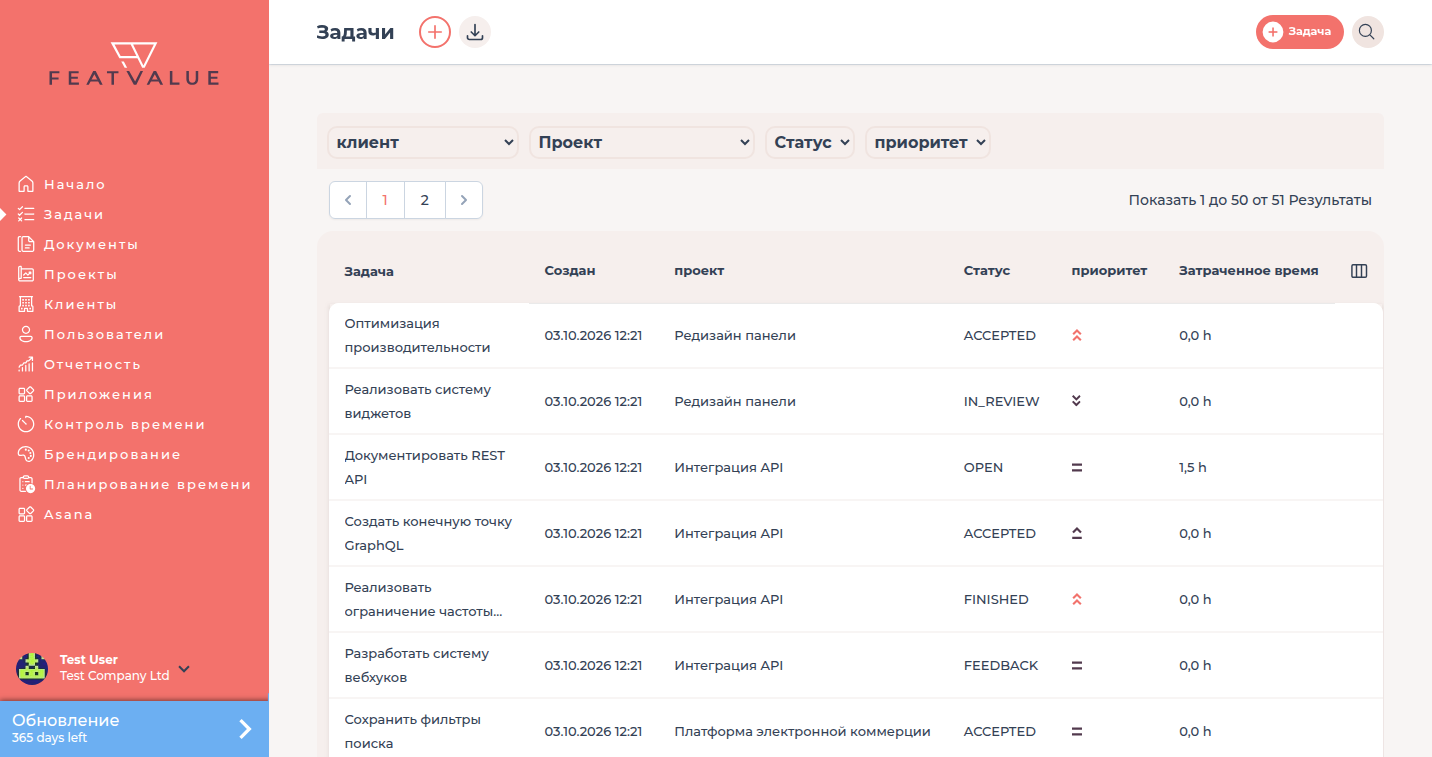
The tasks list can be limited by project, status and priority. You can show or hide columns yourself. A click on a column heading sorts the list. Search finds tasks and projects. Download exports the current filter as a spreadsheet.
What it is for
Filters keep the open list readable. With Columns you choose which fields appear in the table, for example due date or author. Your choice is stored for your user account. Sorting is stored the same way: without your own sorting the list uses due date ascending, and tasks without a date stay at the end. Search finds a task or project by name. Download returns the filtered rows and every column you could enable under Columns, including columns currently hidden in the list.
How the open list is built: Tasks overview.
Where to find it
Open Tasks. Filters sit on the list. Columns is the small icon at the top right of the tasks list. Download is in the header. Download appears once at least one task exists.
Search is the search field in the app header. It finds tasks and projects.
How it works
-
Filter the list
Choose a project, a status and a priority. Status labels come from the workflow, not from a fixed name. -
Choose columns
Click the columns icon at the top right of the list. Enable or disable the fields you want, then save. The task name always stays visible. Extra project task fields appear in the picker when they can be shown in the table. Если вы управляете собственной темой (whitelabeling), текущий выбор можно сохранить как стандарт темы по ссылке справа вверху в панели «Столбцы». Пользователи без своих настроек (включая клиентов) увидят эти столбцы. -
Which tasks appear by default
Finished and canceled tasks stay hidden on the open list. Labels follow the workflow (for example Finished or Canceled). -
Search
Type in Search. Results include tasks and projects. An empty result shows No search results found. -
Export the current filter
Click Download. FeatValue writes an XLSX with the rows of the active filter and every column available in the column picker, even if those columns are hidden in the list.
Options
| Option | What it does |
|---|---|
| Project | One project or all projects you may see. |
| Status | Workflow labels of the statuses in your projects. |
| Priority | Highest, High, Medium, Low, Lowest. |
| Columns | Which fields appear in the tasks list. The choice applies only to you. The download always includes every selectable column. |
| Sorting | Click a column heading. The sorting applies only to you and is still there on the next visit. Without your own sorting: due date ascending, tasks without a date at the end. |
| Download | Spreadsheet of the current filter with every column available under Columns. |
Permissions
The export contains tasks you already see on the list. Creating new rows still needs a writable project. See Creating and editing tasks.
Troubleshooting
Download is missing
The header shows Download only when at least one task exists.
The file has fewer rows than expected
Reset or widen the filters. The export follows the list, not the whole company.
Search finds no task
Try the project name. Search covers tasks and projects, not comment text.
A column is missing from the list
Open Columns and enable the field. The default view does not show every field from the task details.
Your question has not been answered?
We will be happy to help you. You can send us an e-mail or arrange a video conference: